

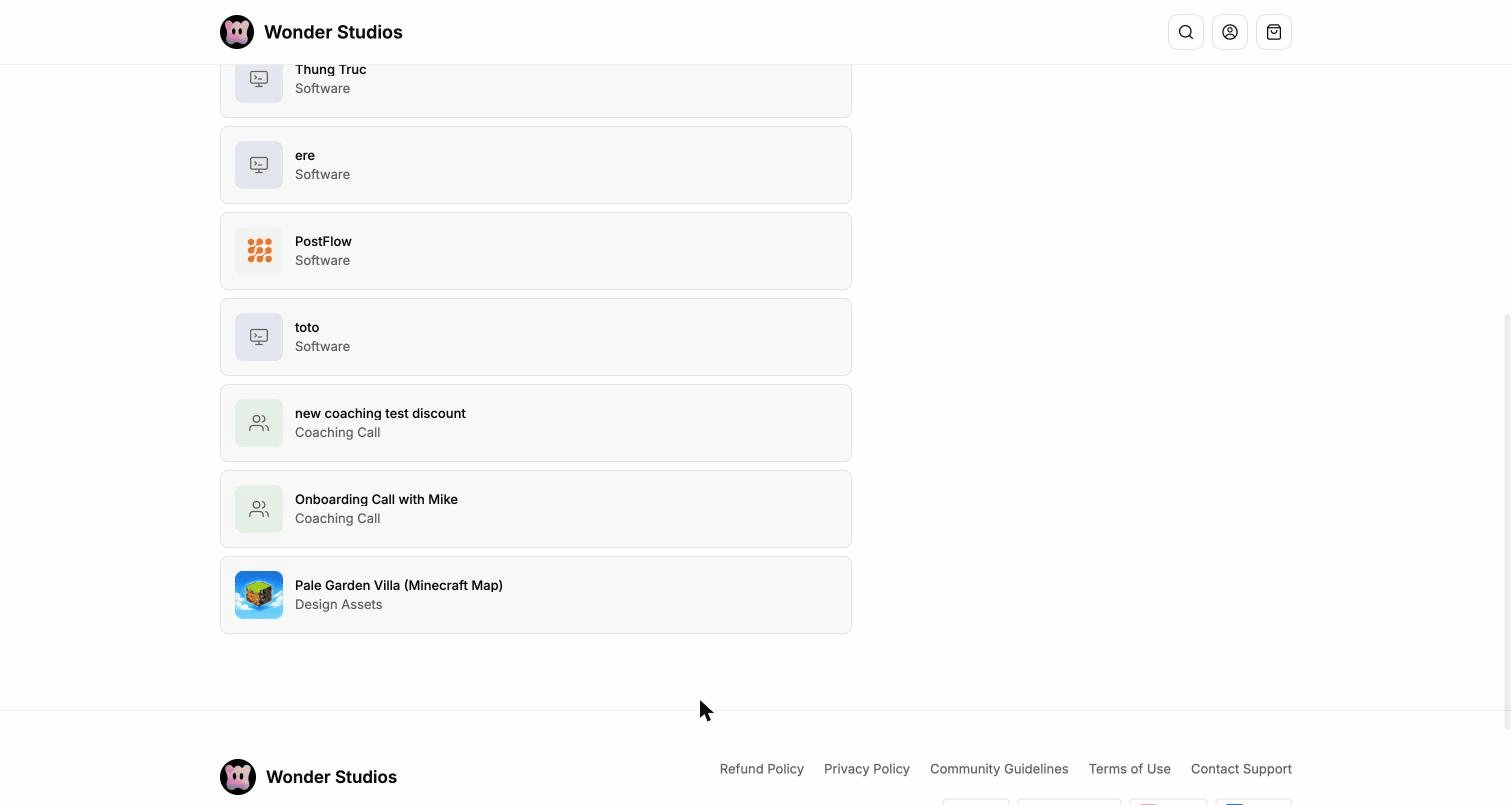
<workspace>.boble.io/store (e.g. rgaconsulting.dev.boble.io/store). It is reached from the Store item in the admin sidebar, or via the View store page buttons across the admin panel. This is the client-facing platform: it showcases the creator’s public products, with detail pages and built-in payment.
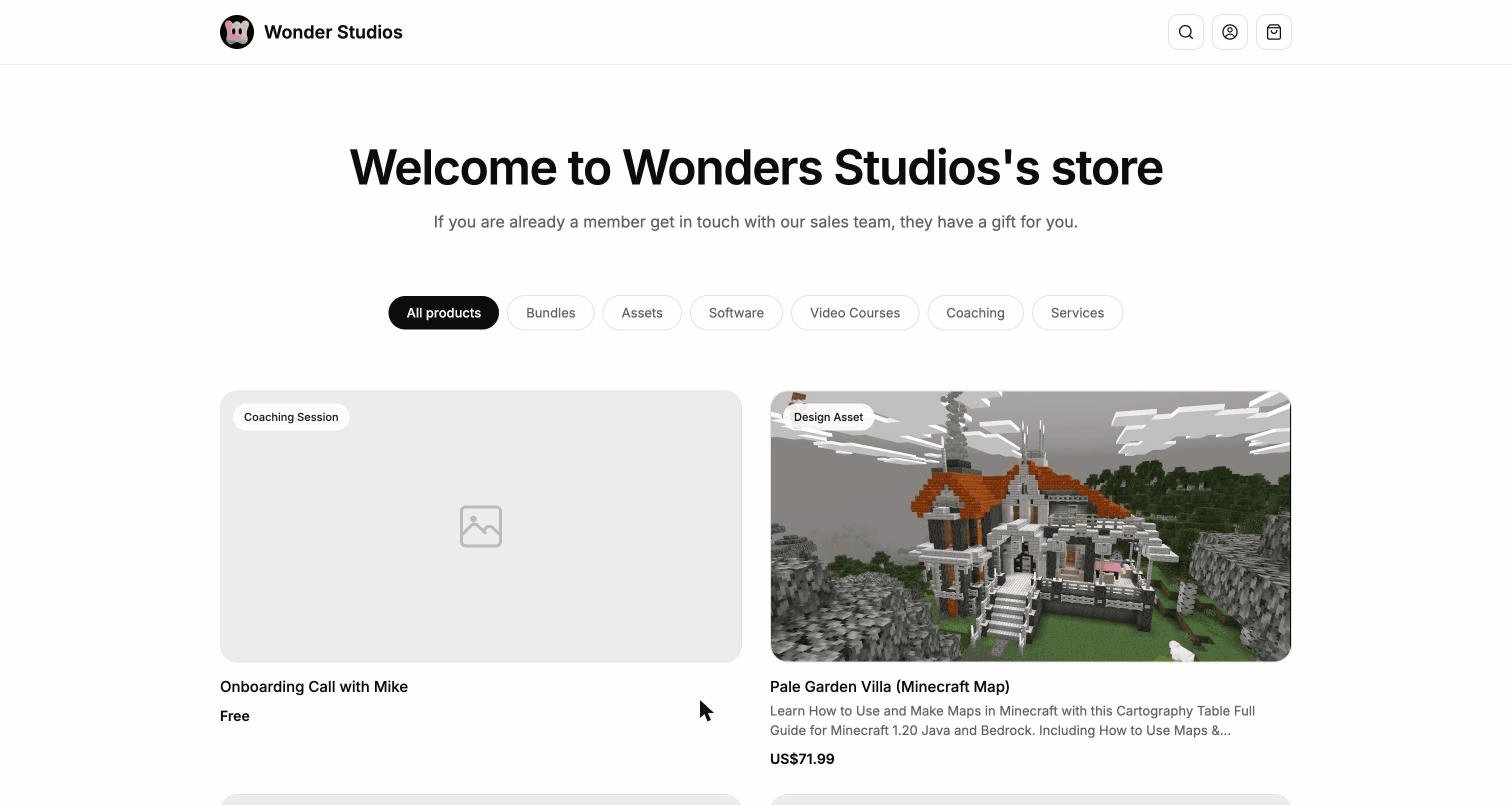
Page structure
Header
- Logo and business name — configured in Settings → Branding.
- Search — find a product in the store.
- Account — customer sign-in.
- Cart — current order.
Hero
The headline and subtitle come from Settings → Branding → Store Front (Title and Description).Category filters
The product grid can be filtered by type: All products, Bundles, Assets, Software, Video Courses, Coaching, Services. Only products whose store status is Public appear here.Product cards
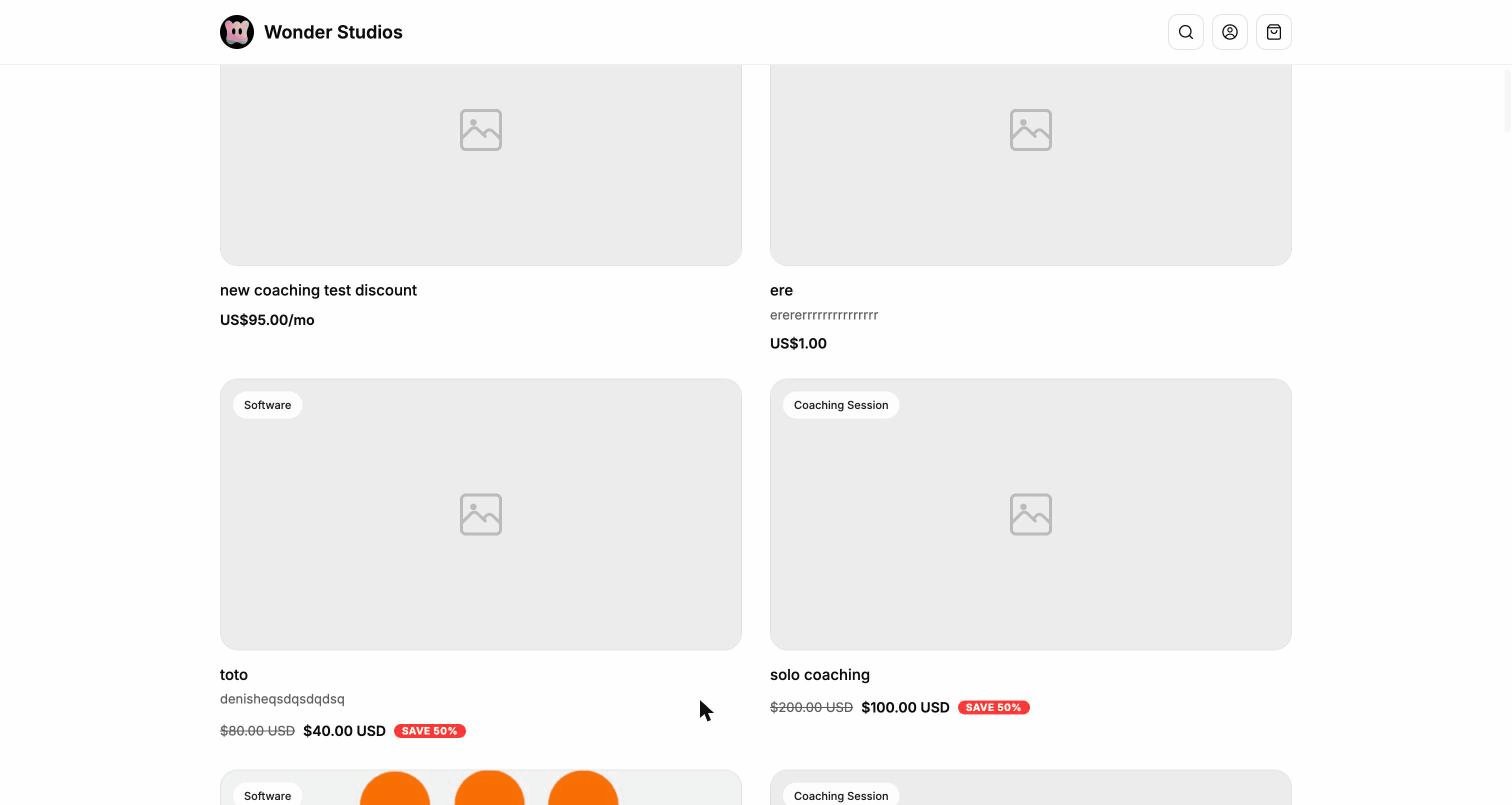
- A category badge (e.g. Coaching Session, Design Asset, Software, Video Course, Bundle, Service)
- The cover image
- The title and a short description
- The price, which adapts to the pricing model:
Free- One-time price (e.g.
US$71.99) - Subscription (e.g.
US$95.00/mo) - Discounted price with the original struck through and a SAVE n% badge
- Any currency configured by the creator (US, F CFA, …)
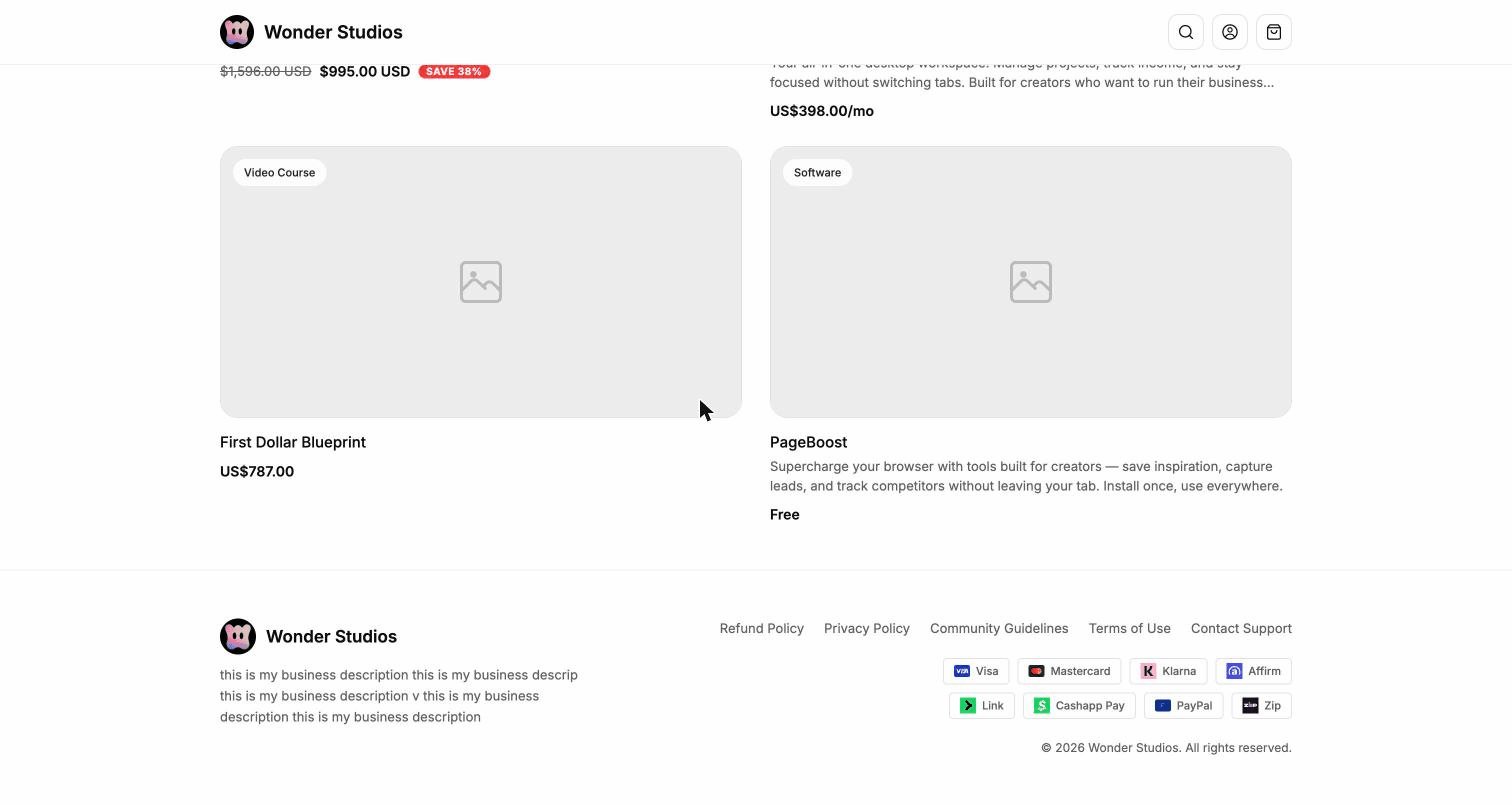
Footer
Product detail page
Clicking a card opensstore/<product-id>, with a Shop / breadcrumb back to the grid.
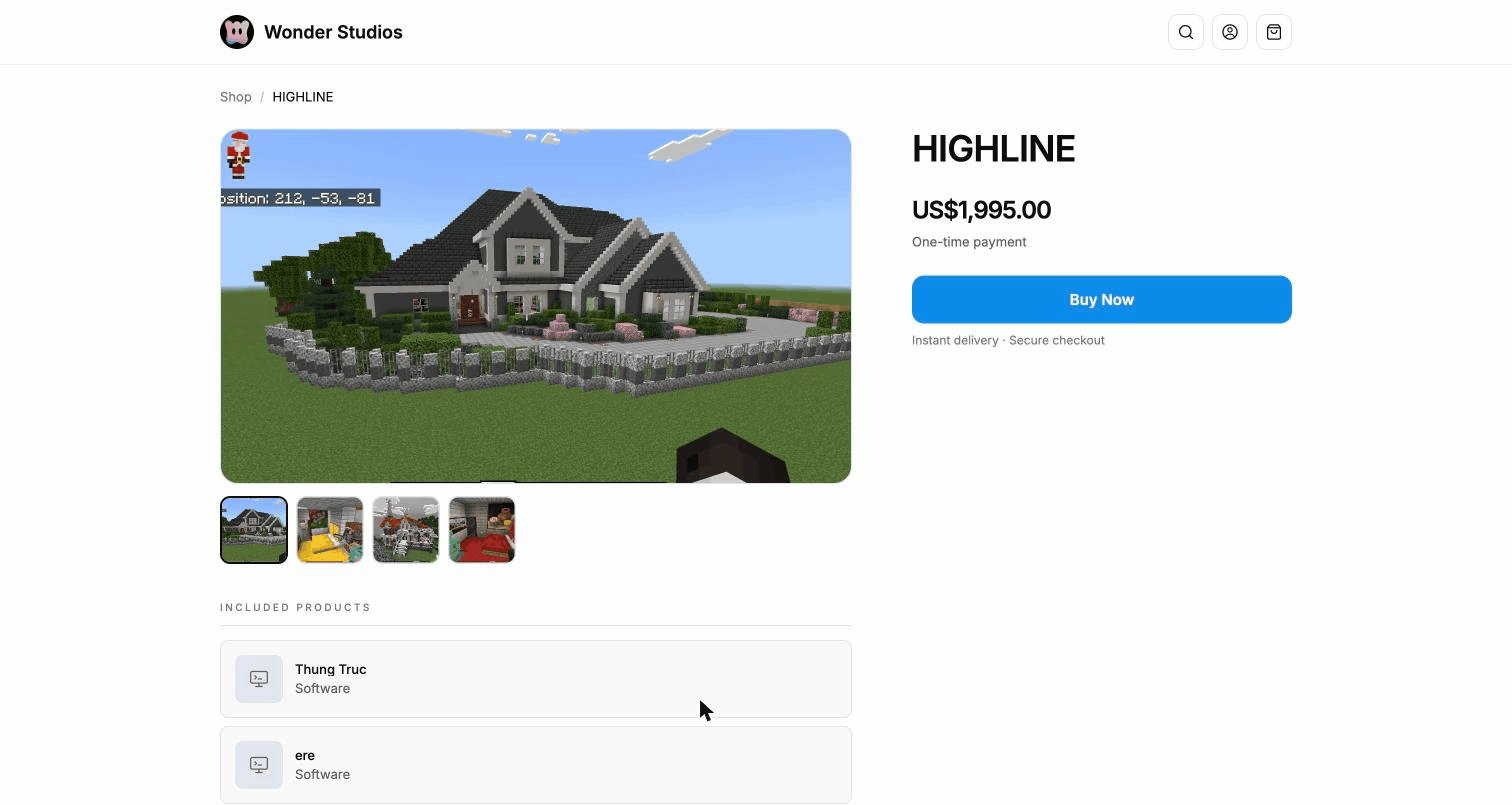
- Image gallery — main visual with clickable thumbnails.
- Title and price — with the pricing type (One-time payment, subscription…).
- Buy Now — opens the checkout in a new tab.
- “Instant delivery · Secure checkout” reassurance text.
- The content sections configured in the admin (What’s inside, Who it’s for) when present.
Checkout and payment
Buy Now opens the secure checkout (/checkout/...), powered by Stripe:
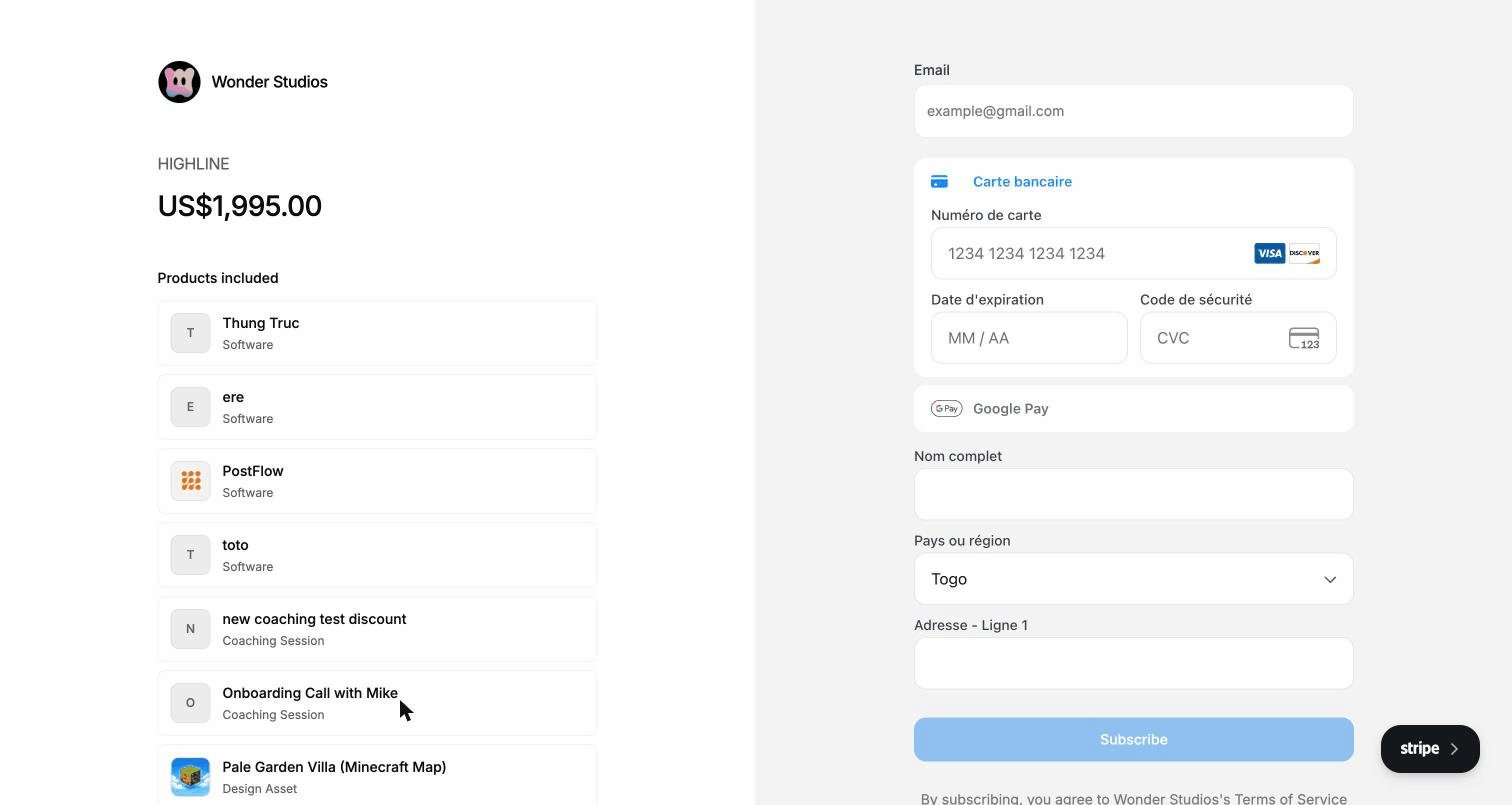
- Product name and price
- For bundles, the list of included products
- Add promotion code field
- Total due today
- Card — number, expiry date, CVC (Visa, Mastercard, Discover…)
- Google Pay as an alternative payment method
- Full name, Country or region, Address
- The Pay / Subscribe button (label depends on the pricing model)
The checkout reflects the configuration made in the admin panel: pricing type and amount (product Checkout tab), promo codes, trial period, stock, and access expiry.