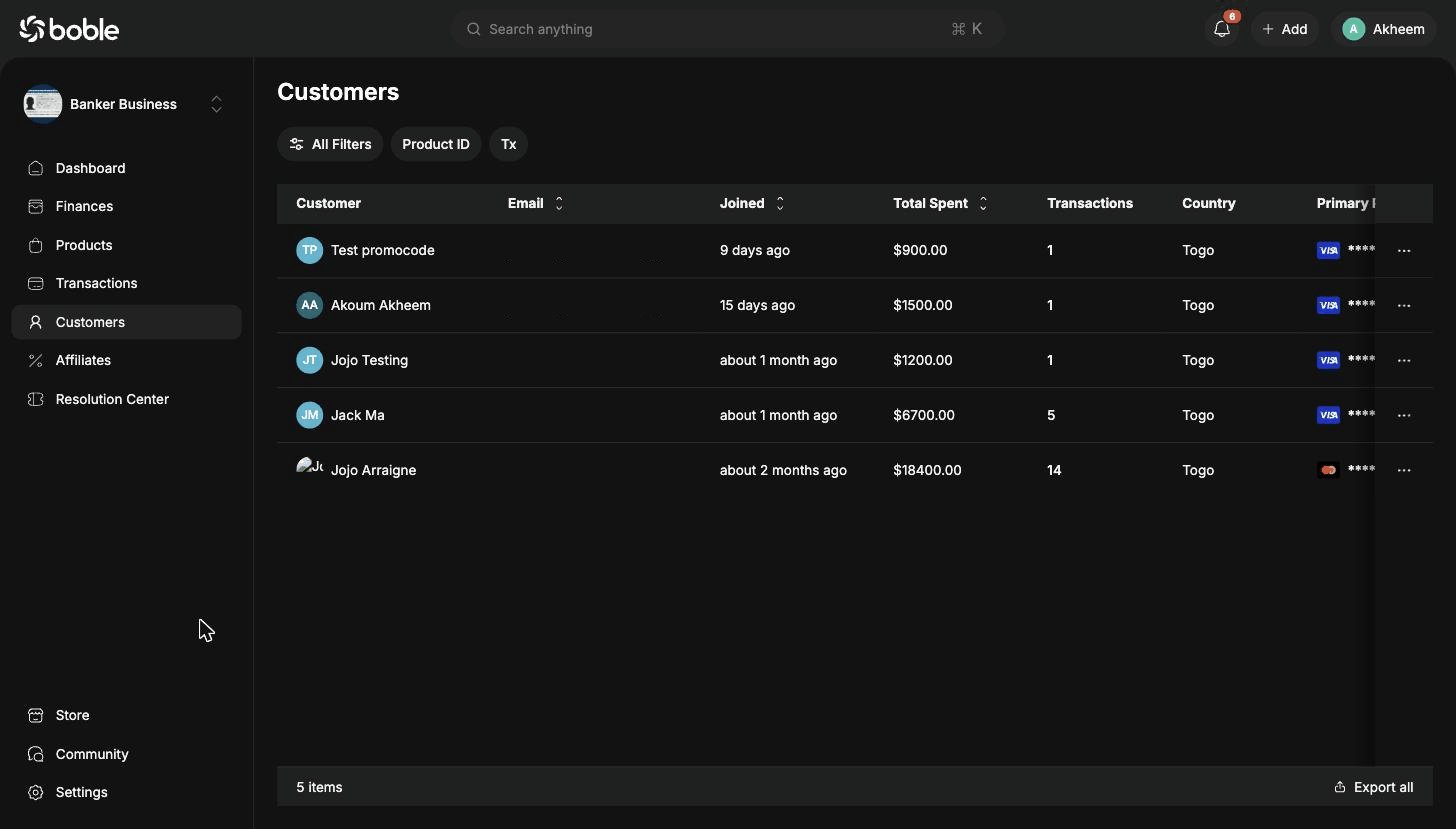
The Customers page (admin.boble.io/customers) lists everyone who has bought one of your products, with their lifetime value and transaction count.
Boble admin customers list

Customer list

Filter the list with All Filters, Product ID (customers of a given product), or Tx (transaction count), and download it with Export all.
ColumnDescription
CustomerName and avatar. Click the row to open the profile.
EmailThe customer’s email address.
JoinedWhen the customer first joined (sortable).
Total SpentLifetime amount spent (sortable).
TransactionsNumber of transactions.
CountryThe customer’s country.
Primary PaymentDefault payment method (card brand + last 4 digits).

Row actions

The button on each row opens the actions menu:
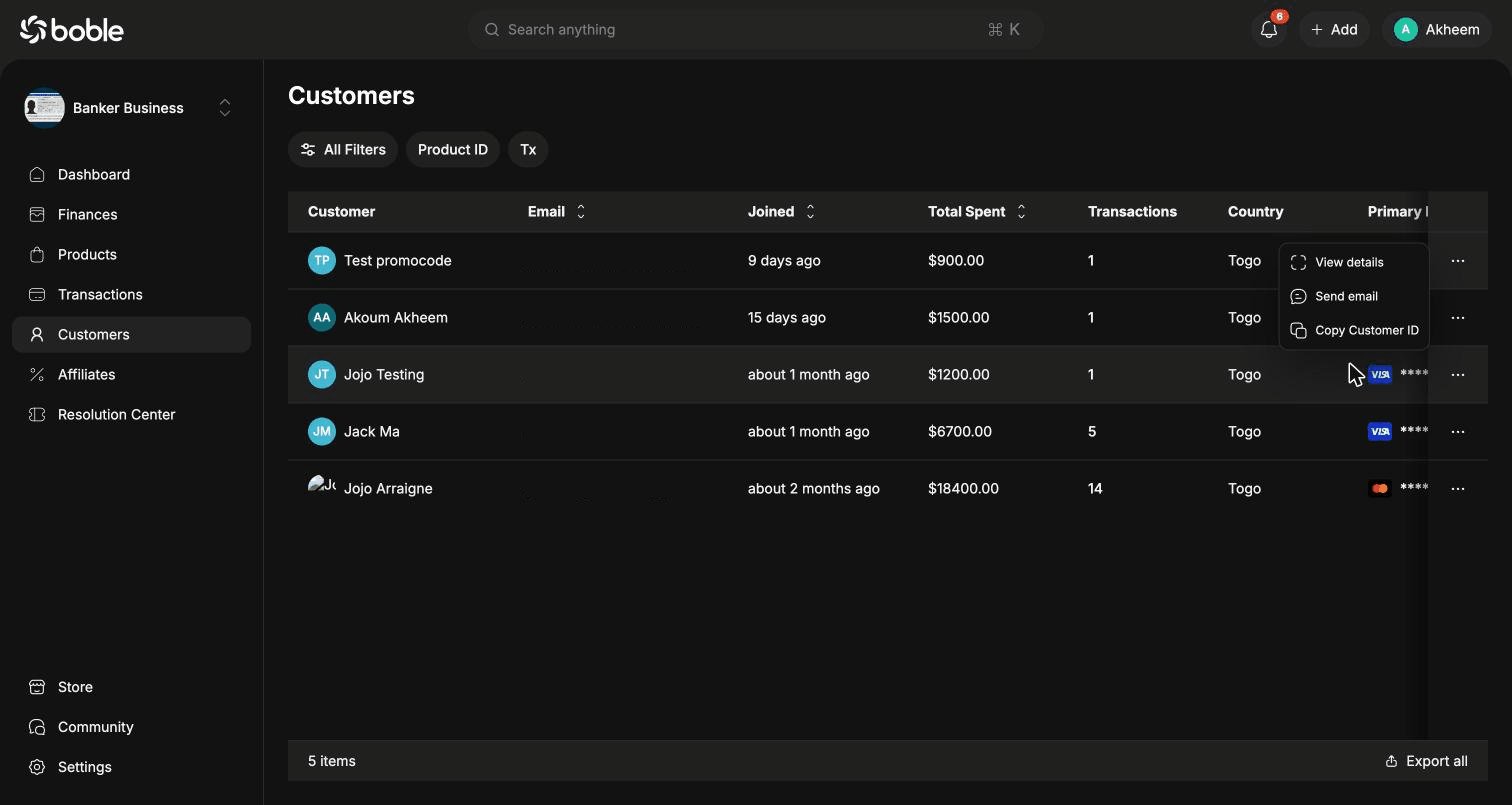
Customer row actions menu
ActionDescription
View detailsOpen the customer’s profile page.
Send emailWrite an email to the customer.
Copy Customer IDCopy the customer’s unique ID.

Customer profile

The profile page has two tabs — Infos and Purchase History — plus a summary card with the avatar, username, join date, and a Send email button. The menu in the header offers Send email and Copy Customer ID.

Infos tab
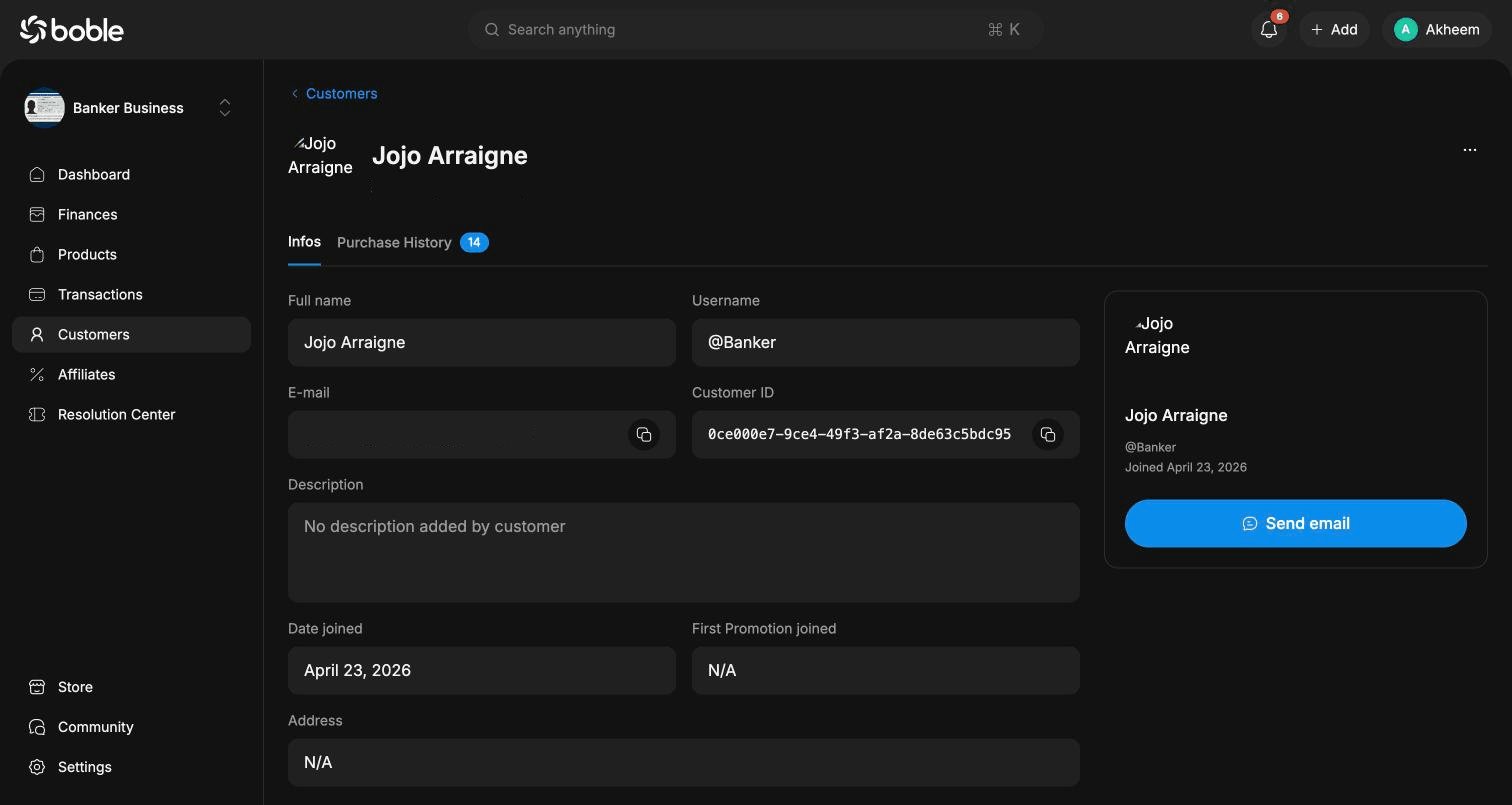
Customer profile — Infos tab
FieldDescription
Full nameThe customer’s display name.
UsernameTheir platform handle (e.g. @Banker).
E-mailEmail address, with a copy button.
Customer IDUnique identifier, with a copy button.
DescriptionBio added by the customer.
Date joinedFirst sign-up date.
First Promotion joinedThe first promotion through which they arrived, if any.
AddressPostal address, if provided.
Customer TagsTags to segment your customers.

Purchase History tab

Every order placed by the customer, with the same filters as the Transactions page (All Filters, Status, Payment Method) and Export all.
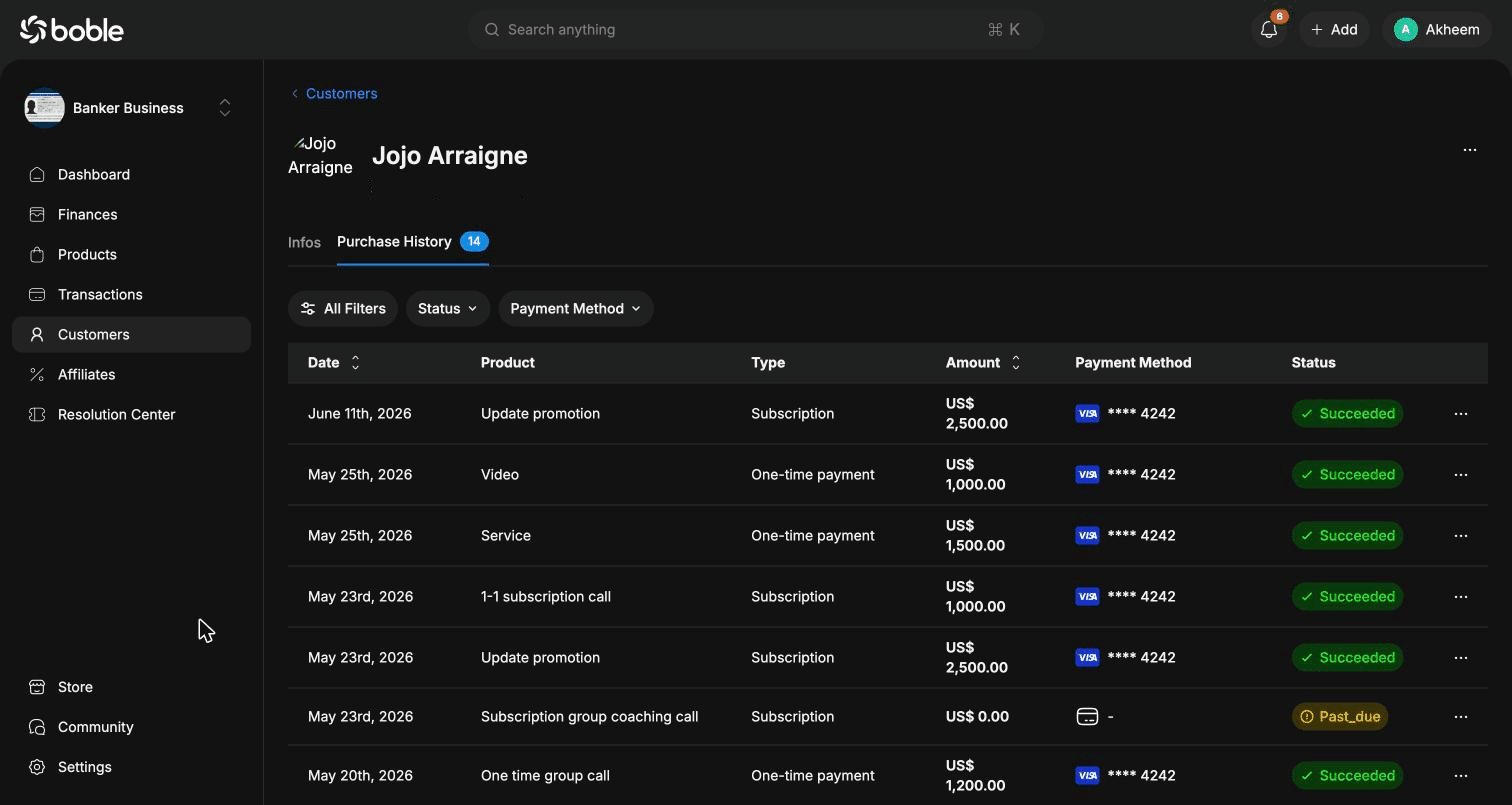
Customer profile — Purchase History tab
Columns: Date, Product, Type (One-time payment / Subscription), Amount, Payment Method, and Status (Succeeded, Past_due, Revoked). Each row also has a actions menu.