

<workspace>.boble.io/home (e.g. rgaconsulting.dev.boble.io/home) and is reached from the Community item in the admin sidebar. It is the social side of the client platform: each product or bundle can have its own community where the creator and customers post, discuss, and schedule calls.
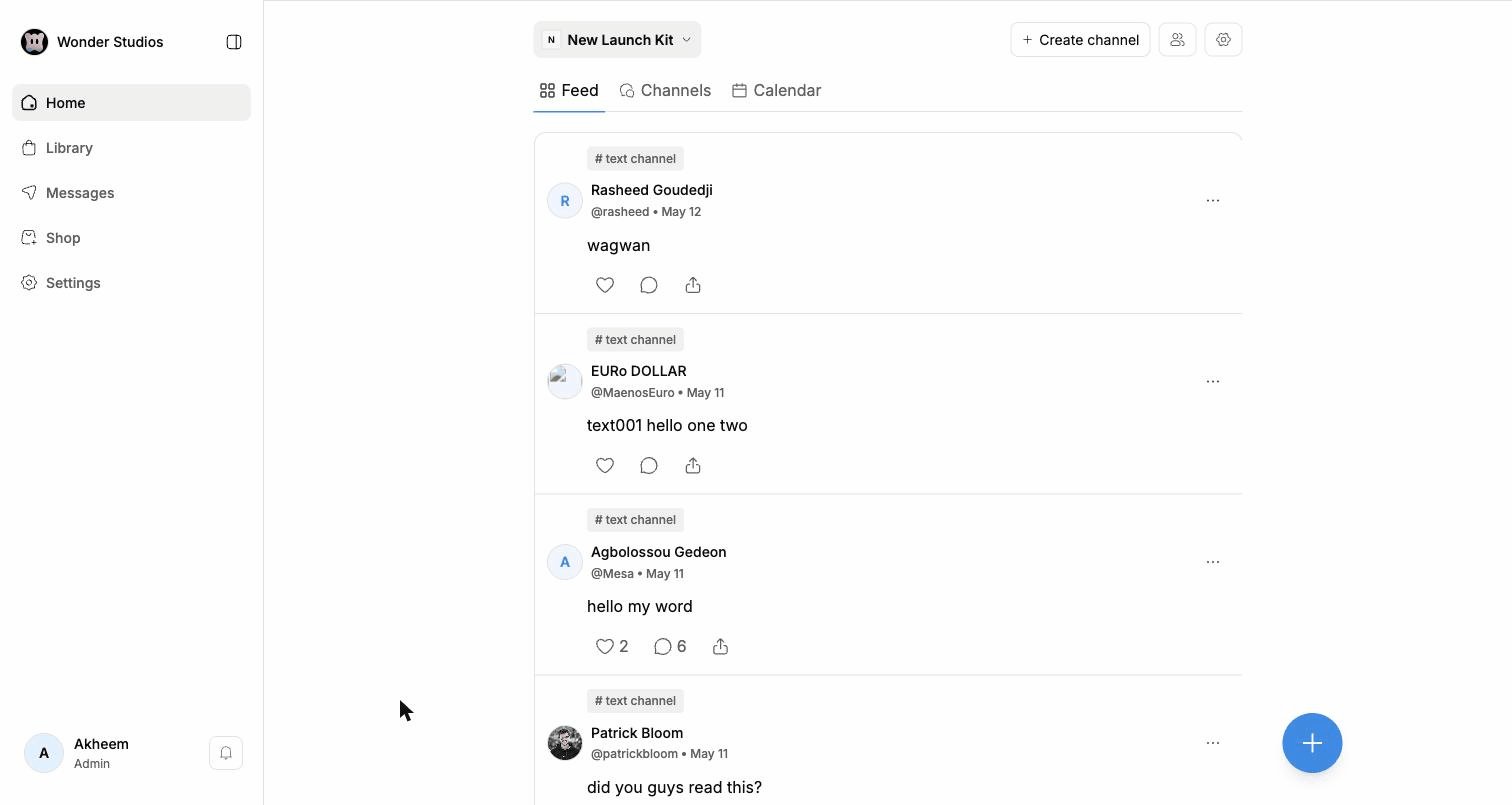
Layout
The left sidebar is shared by all client-platform pages: Home (the community), Library (purchased content), Messages, Shop (opens the storefront in a new tab), and Settings. At the bottom, your profile shows your role (e.g. Admin) and a notifications bell. At the top of Home you will find:- The community switcher — one community per product/offer, plus Create another community:
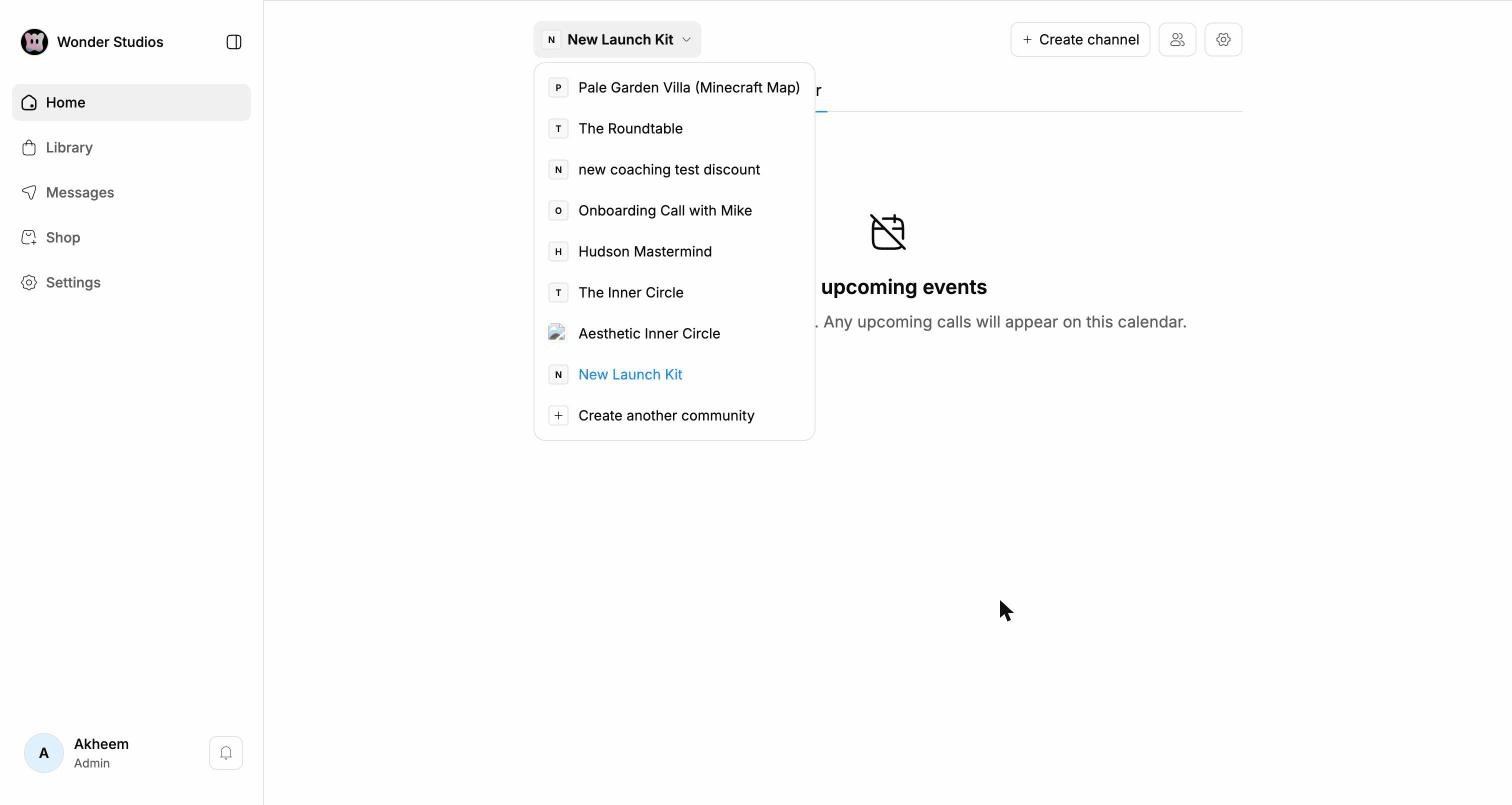
- Create channel, the members icon, and the community settings gear.
Home tabs
Feed
The default tab aggregates the latest posts from every channel (each post carries its channel badge, e.g.# text channel). Posts support:
- Text, @mentions of members, and #channel references
- Links with rich previews (articles, YouTube…)
- File attachments (e.g. PDF) and images
- Like, comment, and share actions, plus a
⋯menu per post
Channels
Opens the channel browser: a right-hand panel lists the community’s channels, with a visibility toggle per channel (admins), and the main area shows the selected channel’s posts.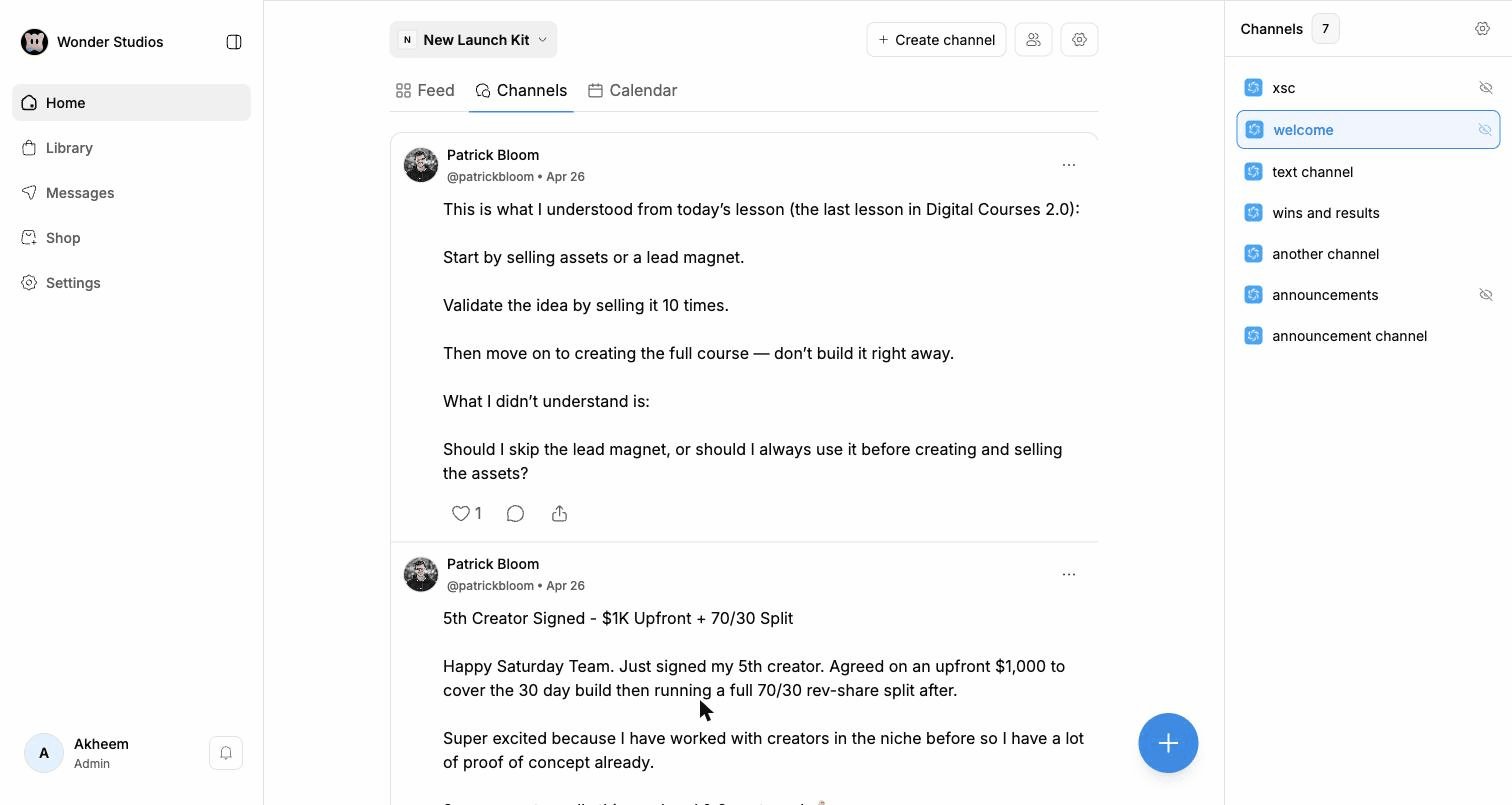
Calendar
Upcoming community events: “Any upcoming calls will appear on this calendar.”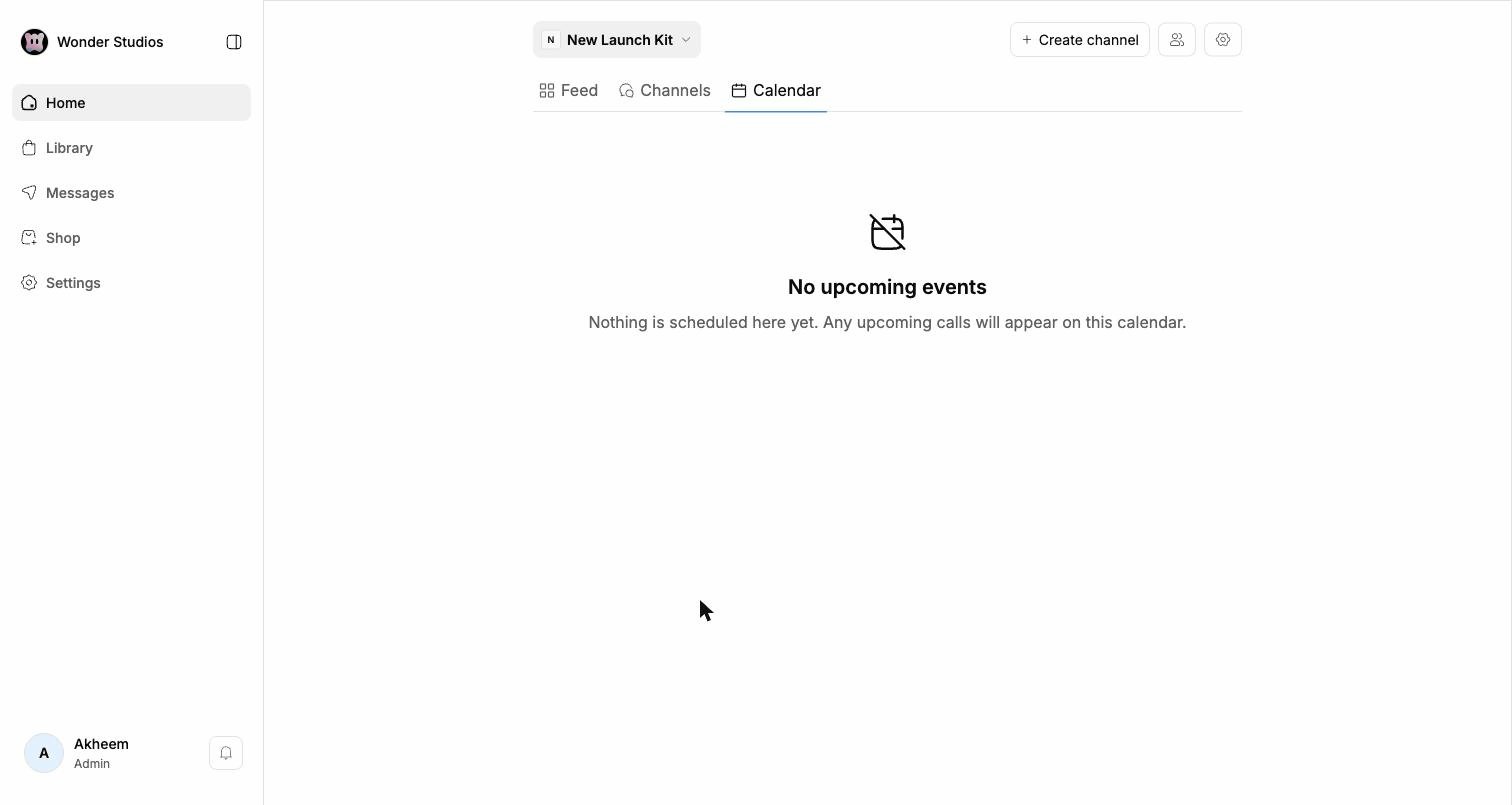
Posting
The floating + button opens the composer: pick the target channel, write your message, and attach images, videos, GIFs, emojis, or files before hitting Post.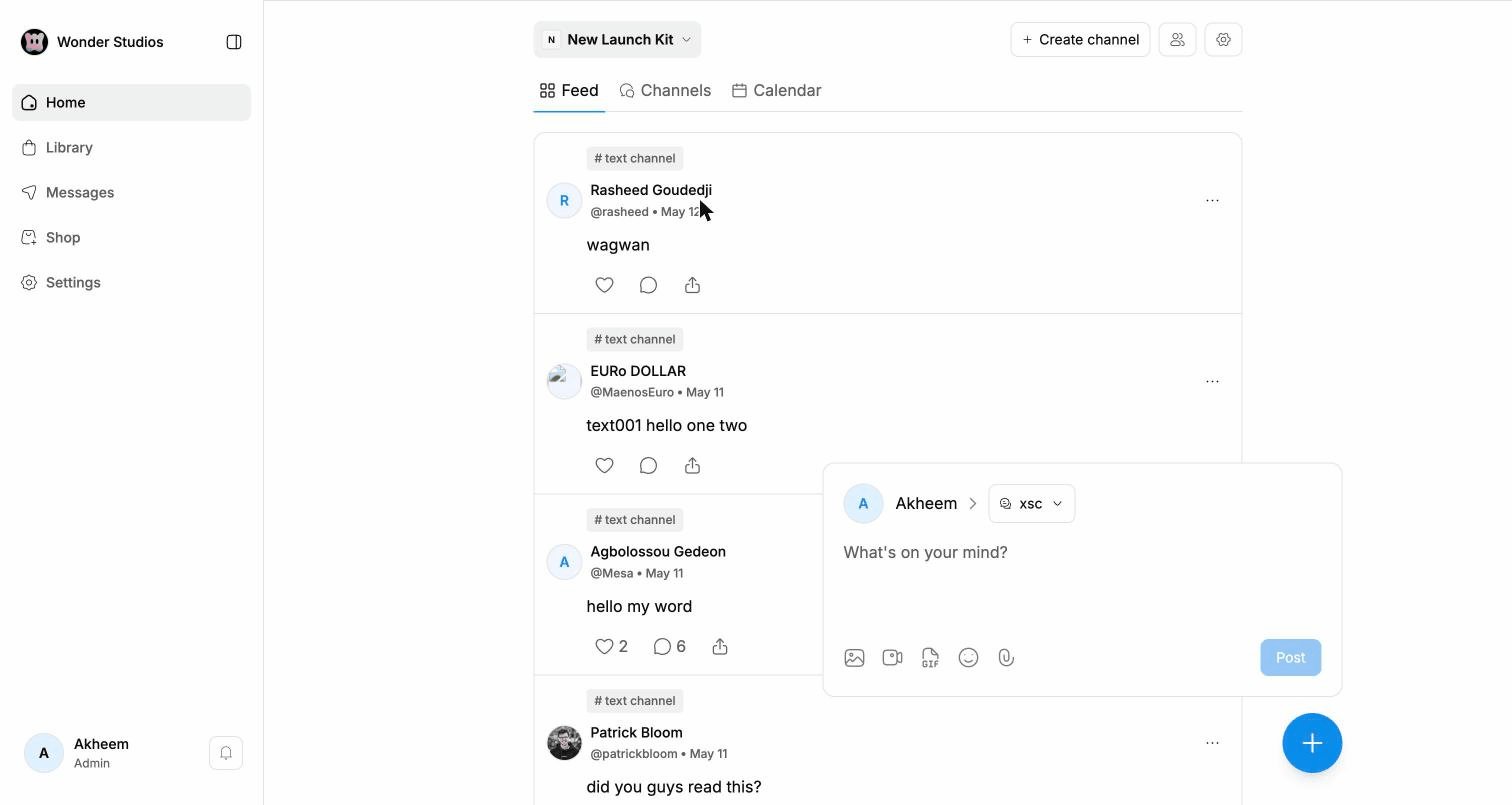
Creating a channel
Create channel opens a modal with: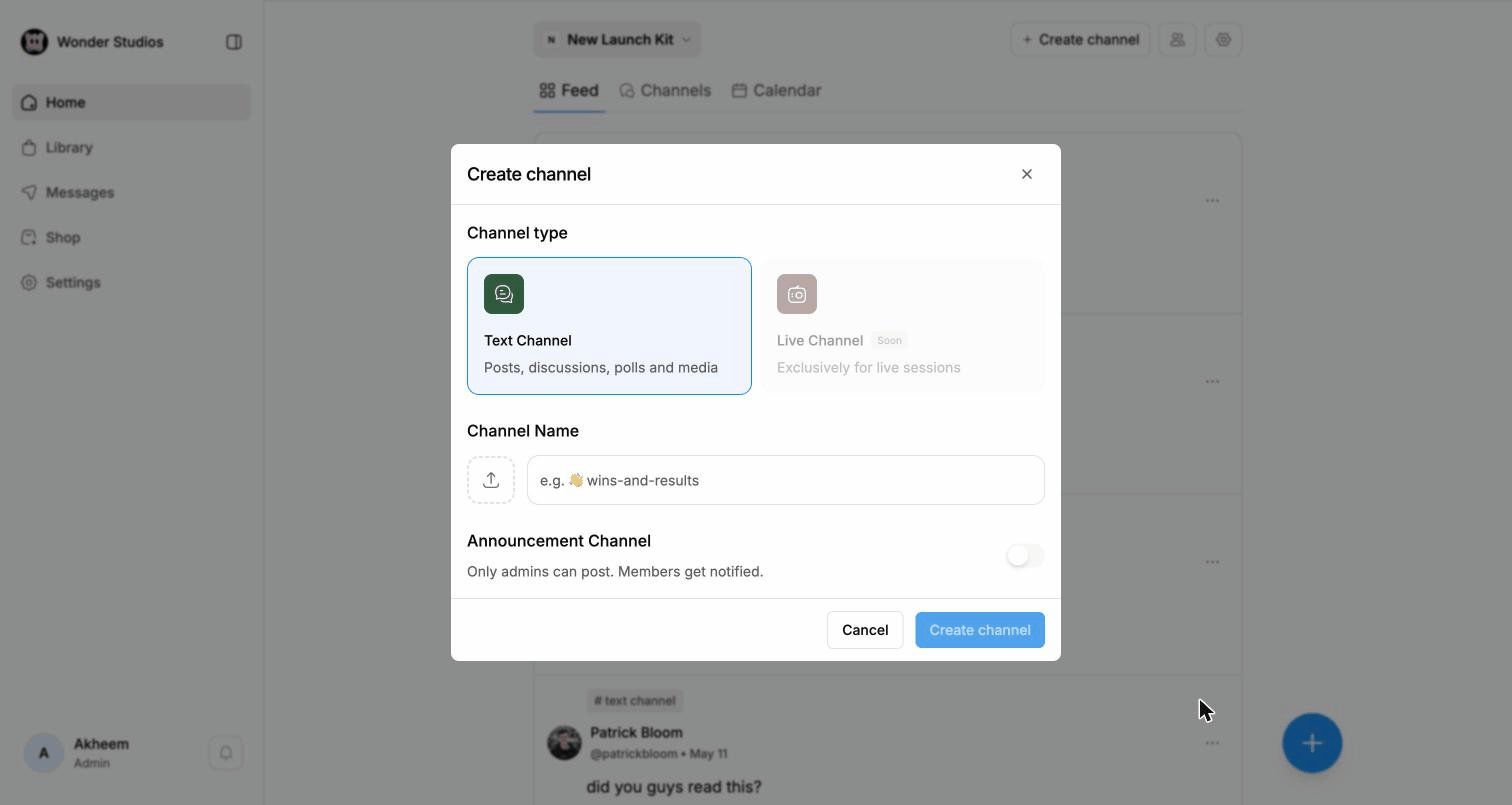
- Channel type — Text Channel (posts, discussions, polls and media) or Live Channel (, exclusively for live sessions)
- Channel name with an optional icon
- Announcement Channel toggle — only admins can post; members get notified
Members
The members icon opens the community roster — every member with their username and an admin badge where relevant.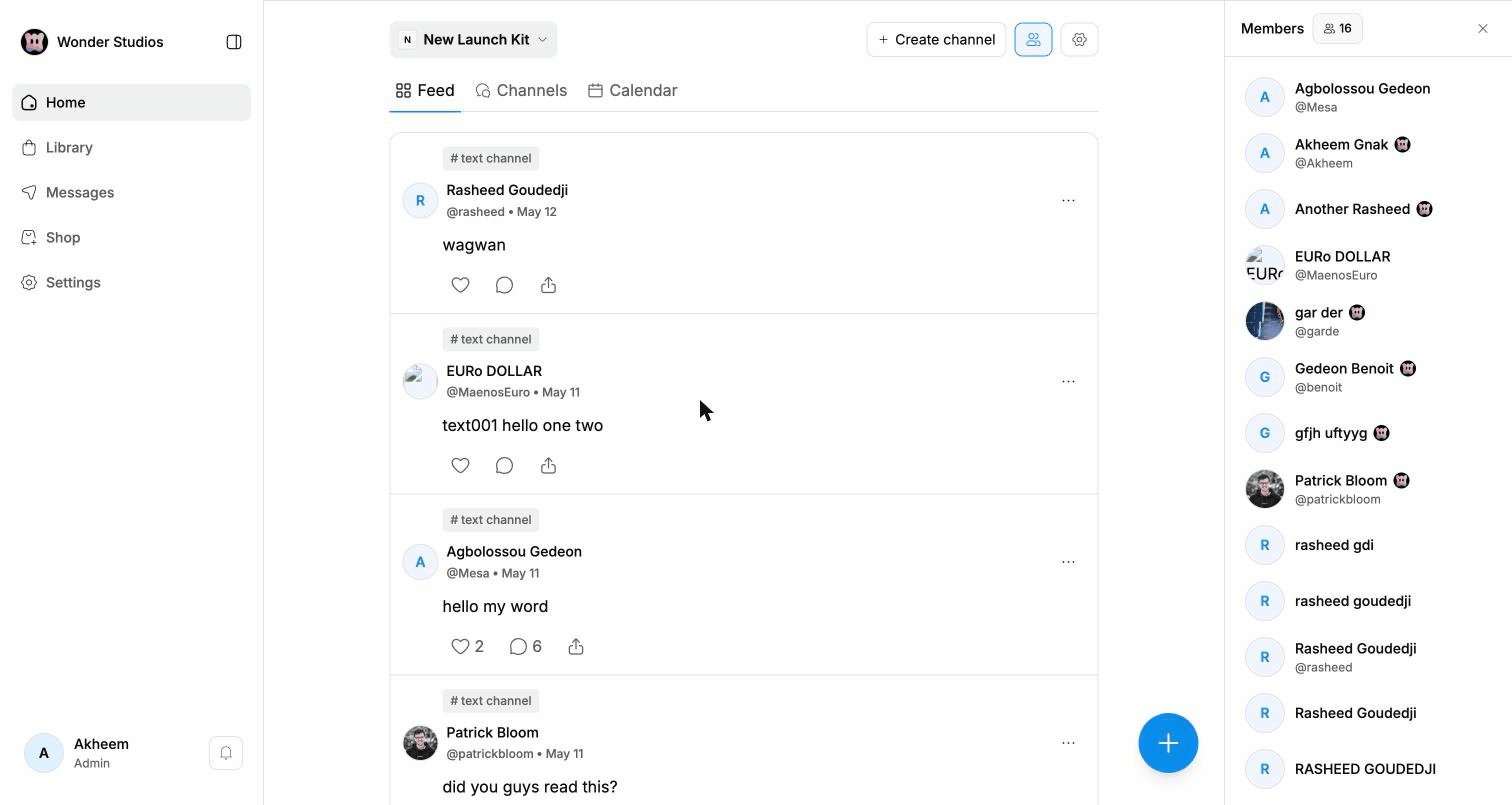
Library
The Library holds everything the customer bought. Pick a purchase in the sidebar (searchable with⌘F), then a product inside it (filters: All purchases, Assets…), and its content opens on the right — for a Files & Links product, a Download ZIP button; for a course, the lessons.
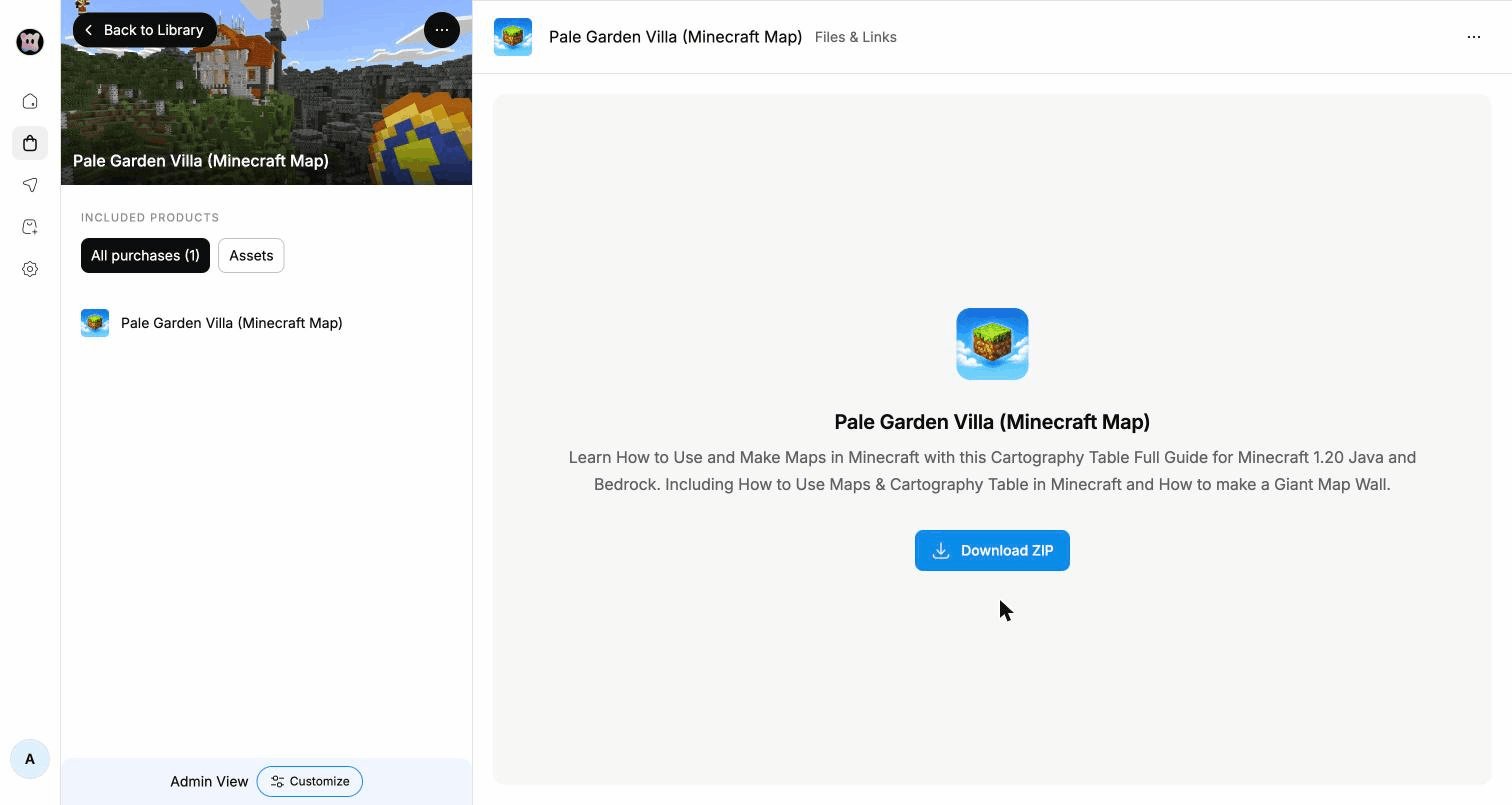
⋯ menu: About product, Copy product link, View product details. Admins see an Admin View banner with a Customize button.
Messages
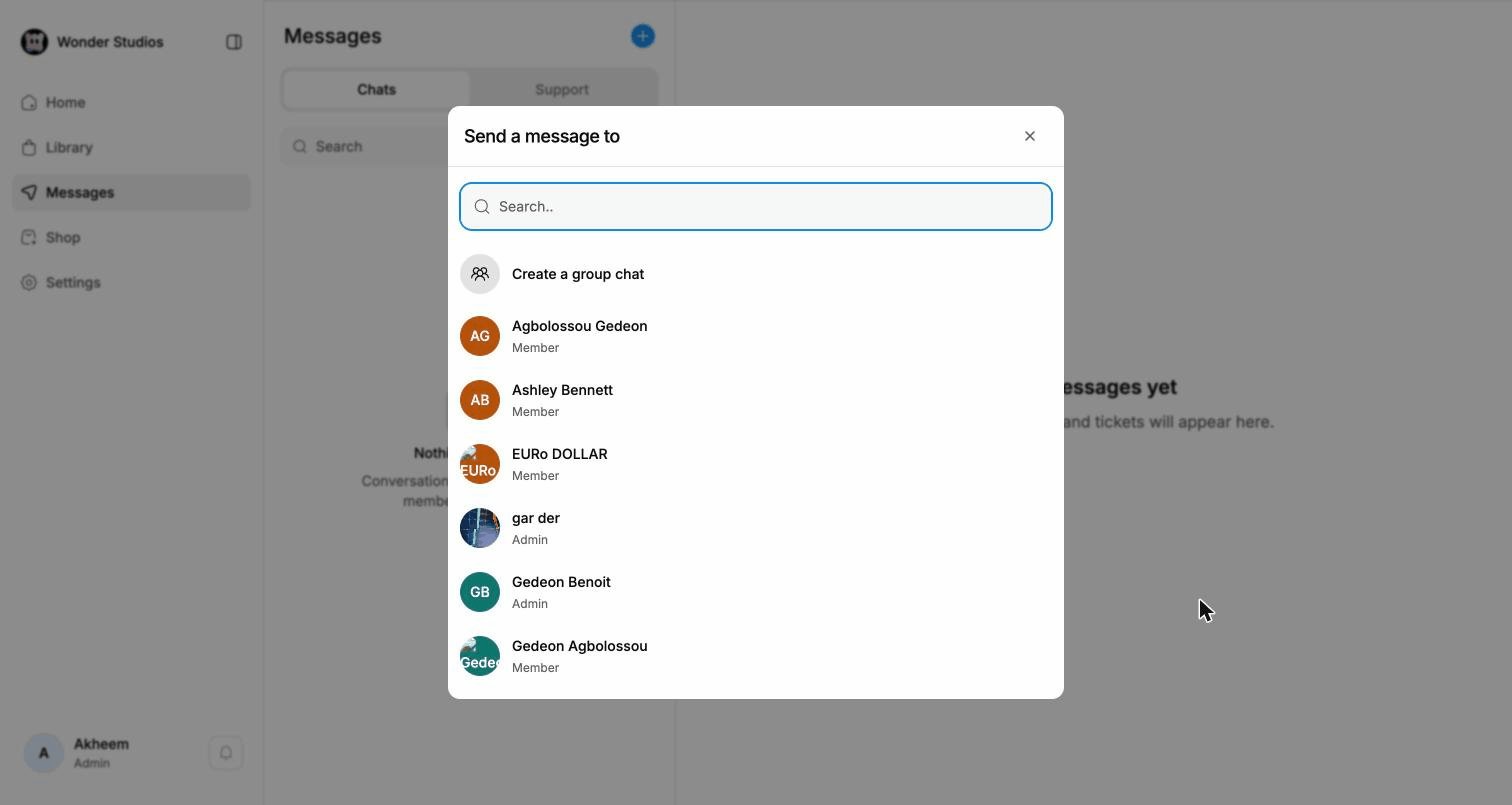
Direct messaging between creators and customers, in two tabs: Chats (conversations) and Support (member tickets).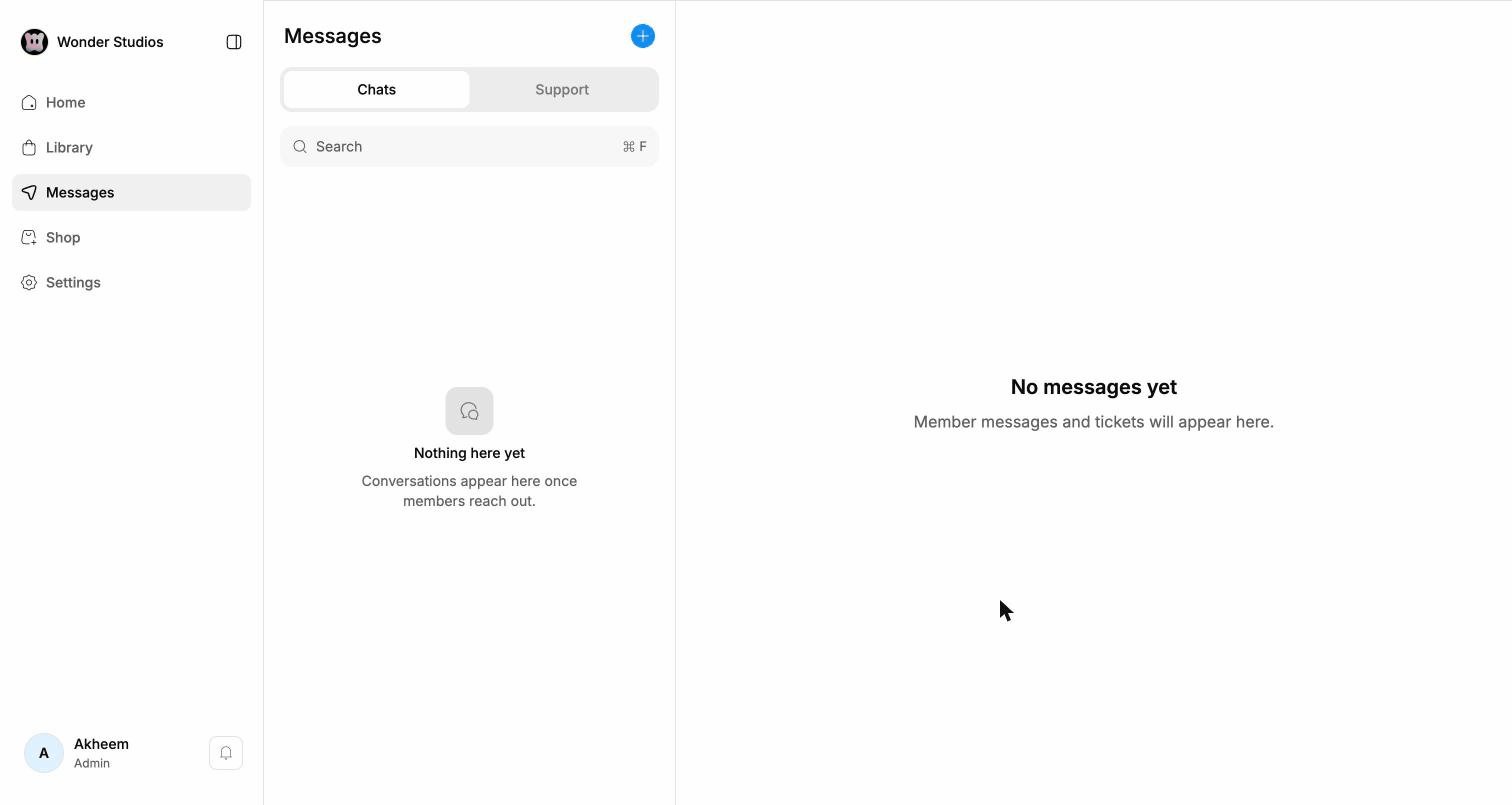
Settings
Client-side account settings, in three sections:Reports
Moderation queue for community reports: Open / Resolved tabs, filters by report type and source (Direct Message or Community), and a Take action button per report (reported user, reporter, type, source, date).Help & Support
Self-serve help articles (account and login, billing, refunds and receipts…) and a Contact support tab.Security
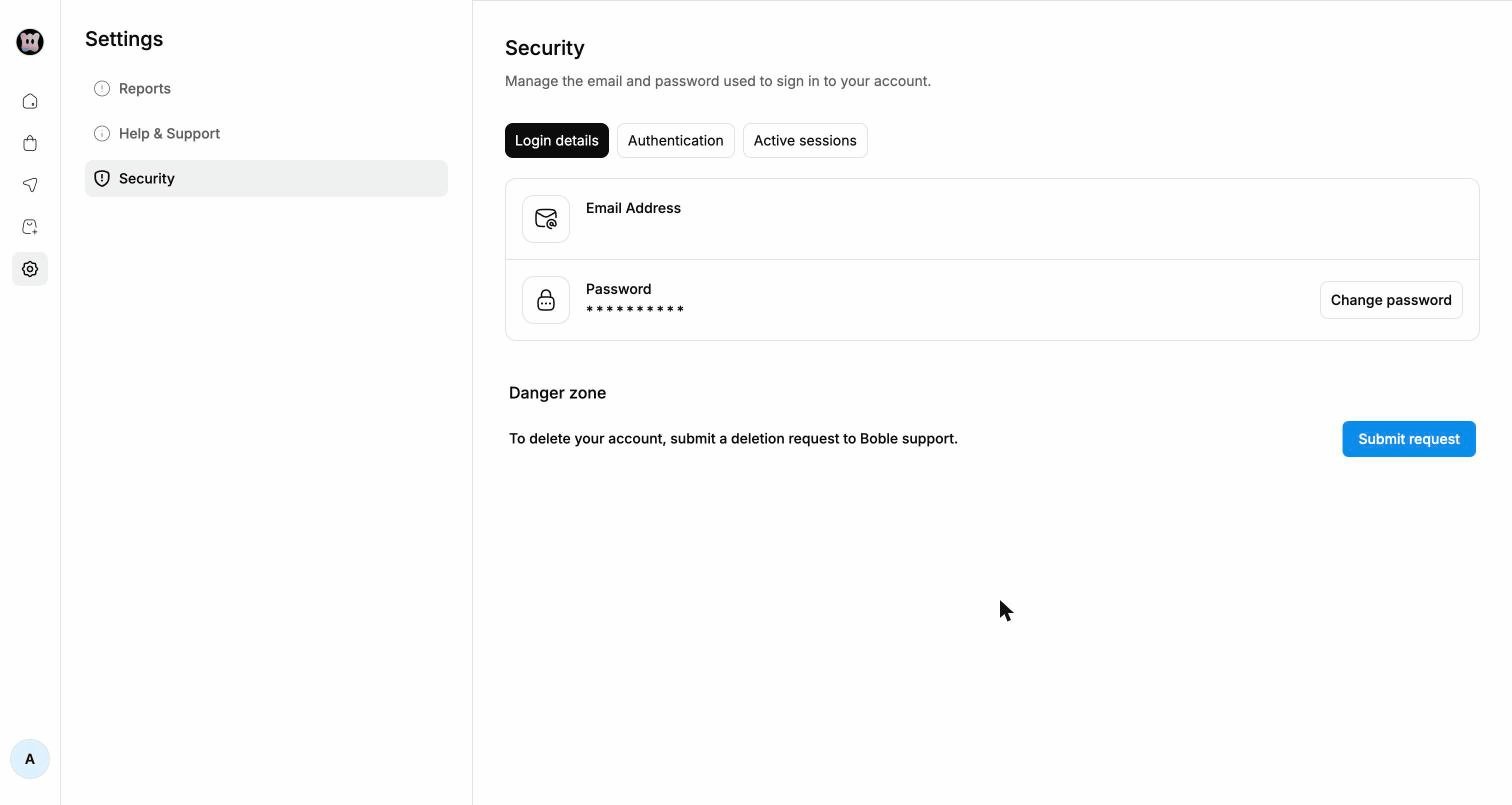
- Login details — email address and password (Change password), plus a Danger zone to submit an account-deletion request to Boble support.
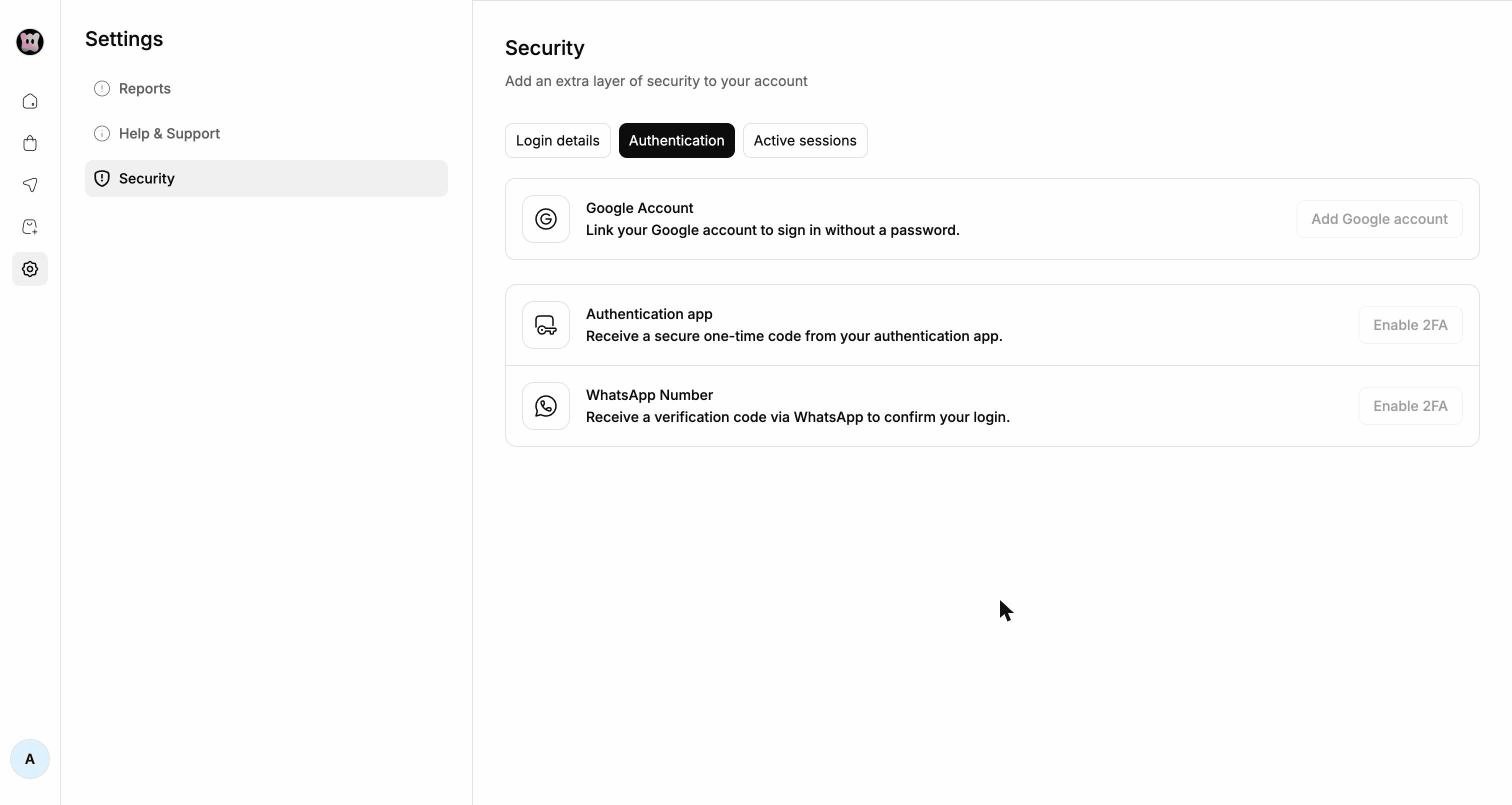
- Authentication — link a Google Account for passwordless sign-in, and enable 2FA via an authentication app or a WhatsApp verification code.
- Active sessions — devices where you are signed in (location and IP, OS and browser, last accessed), with the current device flagged.