> ## Documentation Index
> Fetch the complete documentation index at: https://docs.boble.io/llms.txt
> Use this file to discover all available pages before exploring further.
# Products
> Create and manage single products and bundles: details, content, store page, checkout, promo codes, and payment links.
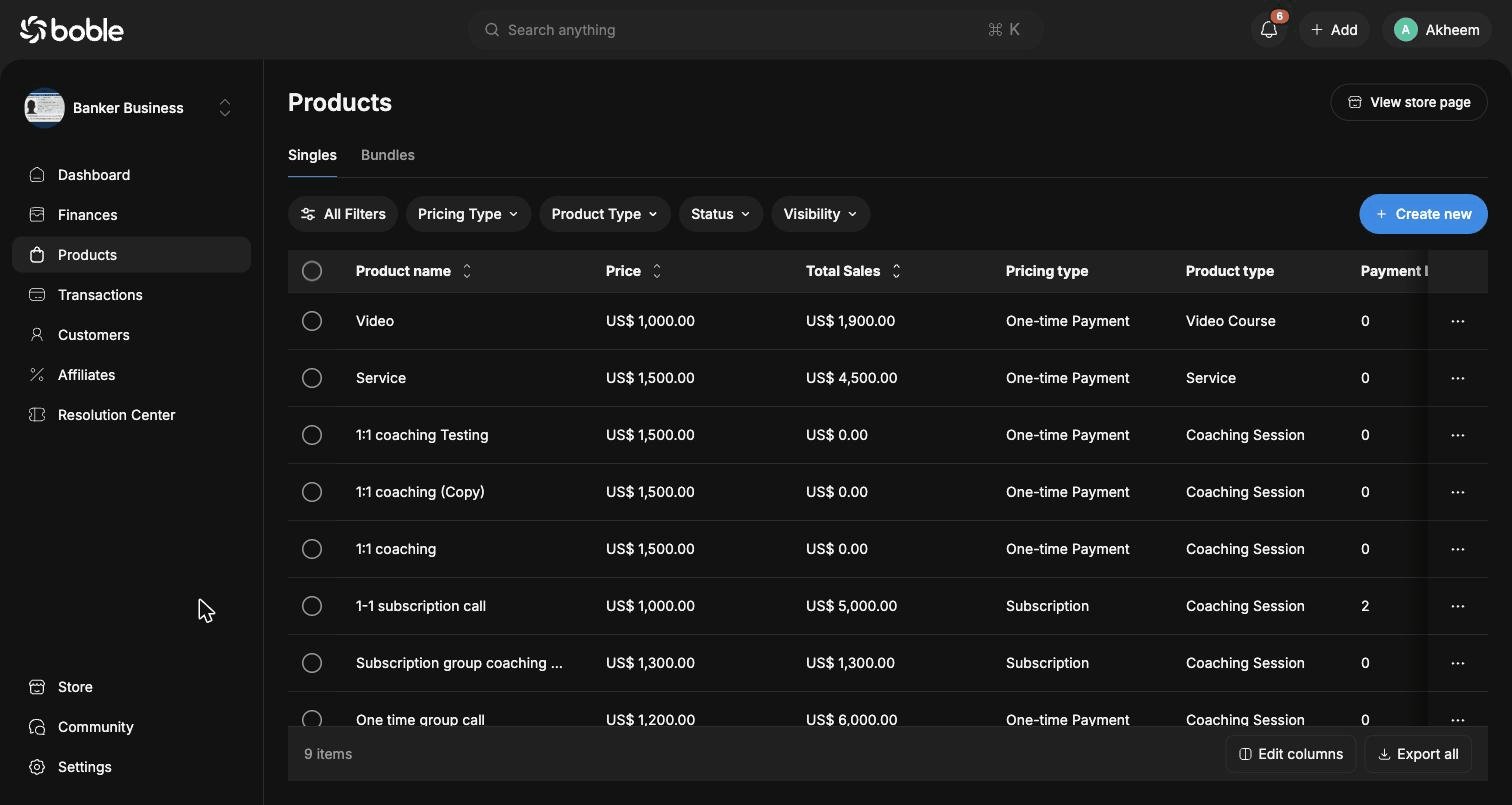
The **Products** page ([admin.boble.io/products](https://admin.dev.boble.io/products)) is where you create and manage everything you sell. It is split into two tabs: **Singles** (individual products) and **Bundles** (packages of several products). The **View store page** button opens your public storefront.
 ## Product list
Both tabs share the same table layout. You can refine the list with the filter bar (**All Filters**, **Pricing Type**, **Product Type**, **Status**, **Visibility**), customize columns with **Edit columns**, and download the list with **Export all**.
| Column | Description |
| ---------------------------- | -------------------------------------------------------- |
| **Product name** | The product title. Click it to open the product details. |
| **Price** | Selling price. |
| **Total Sales** | Revenue generated by this product. |
| **Pricing type** | `Free`, `One-time Payment`, or `Subscription`. |
| **Product type** | `Video Course`, `Service`, `Coaching Session`, etc. |
| **Payment Links** | Number of additional payment links. |
| **Store Status** | `Public` (visible in your store) or `Hidden`. |
| **Checkout Status** | `Live` (purchasable) or `Closed`. |
| **Store URL / Checkout URL** | Copy the public store page or direct checkout link. |
## Creating a product
Click **Create new** on the Singles tab. The creation wizard has three steps:
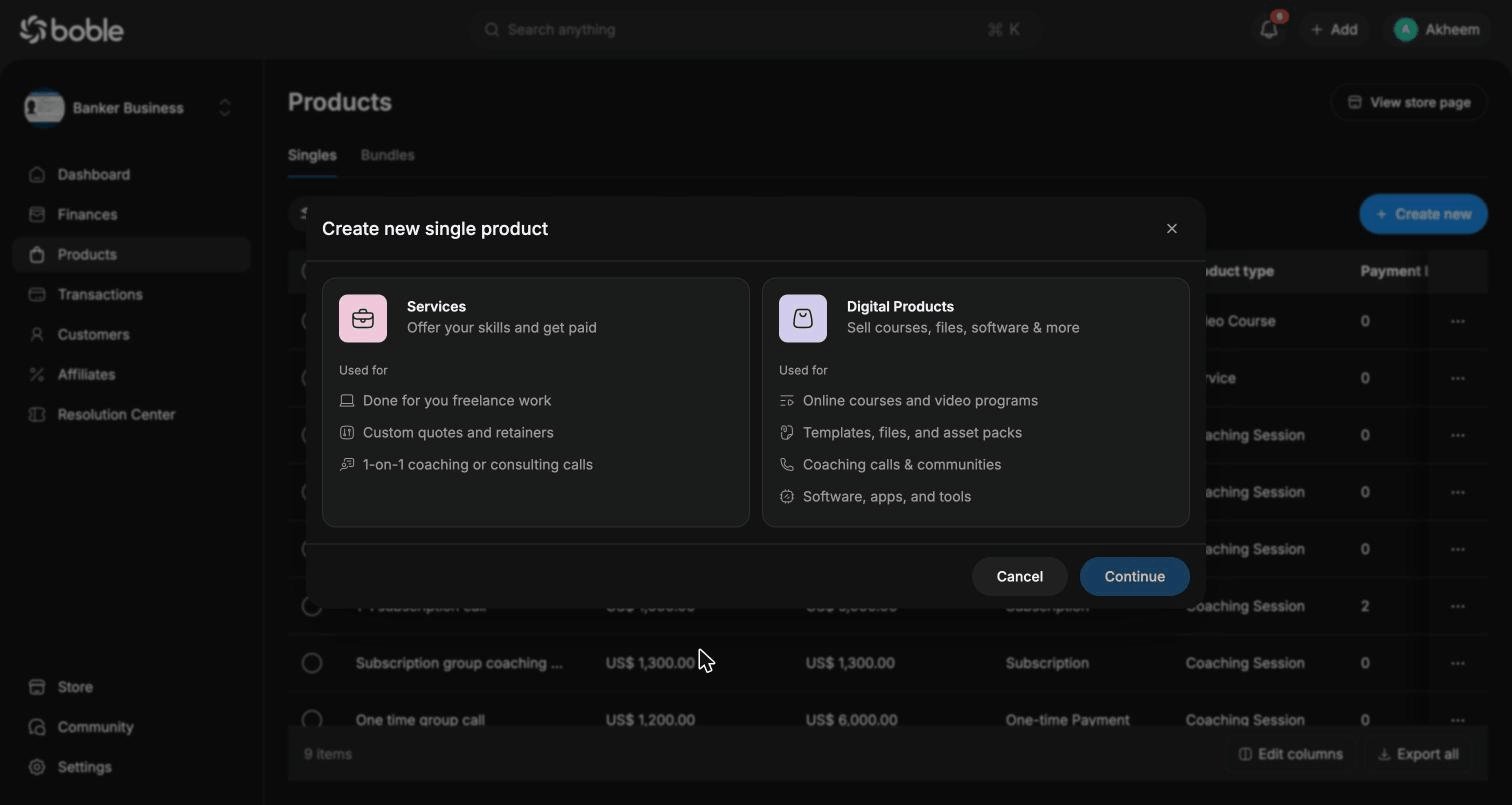
Pick between **Services** (done-for-you freelance work, custom quotes and retainers, 1-on-1 coaching or consulting calls) and **Digital Products** (online courses and video programs, templates, files and asset packs, coaching calls and communities, software, apps and tools).
## Product list
Both tabs share the same table layout. You can refine the list with the filter bar (**All Filters**, **Pricing Type**, **Product Type**, **Status**, **Visibility**), customize columns with **Edit columns**, and download the list with **Export all**.
| Column | Description |
| ---------------------------- | -------------------------------------------------------- |
| **Product name** | The product title. Click it to open the product details. |
| **Price** | Selling price. |
| **Total Sales** | Revenue generated by this product. |
| **Pricing type** | `Free`, `One-time Payment`, or `Subscription`. |
| **Product type** | `Video Course`, `Service`, `Coaching Session`, etc. |
| **Payment Links** | Number of additional payment links. |
| **Store Status** | `Public` (visible in your store) or `Hidden`. |
| **Checkout Status** | `Live` (purchasable) or `Closed`. |
| **Store URL / Checkout URL** | Copy the public store page or direct checkout link. |
## Creating a product
Click **Create new** on the Singles tab. The creation wizard has three steps:
Pick between **Services** (done-for-you freelance work, custom quotes and retainers, 1-on-1 coaching or consulting calls) and **Digital Products** (online courses and video programs, templates, files and asset packs, coaching calls and communities, software, apps and tools).
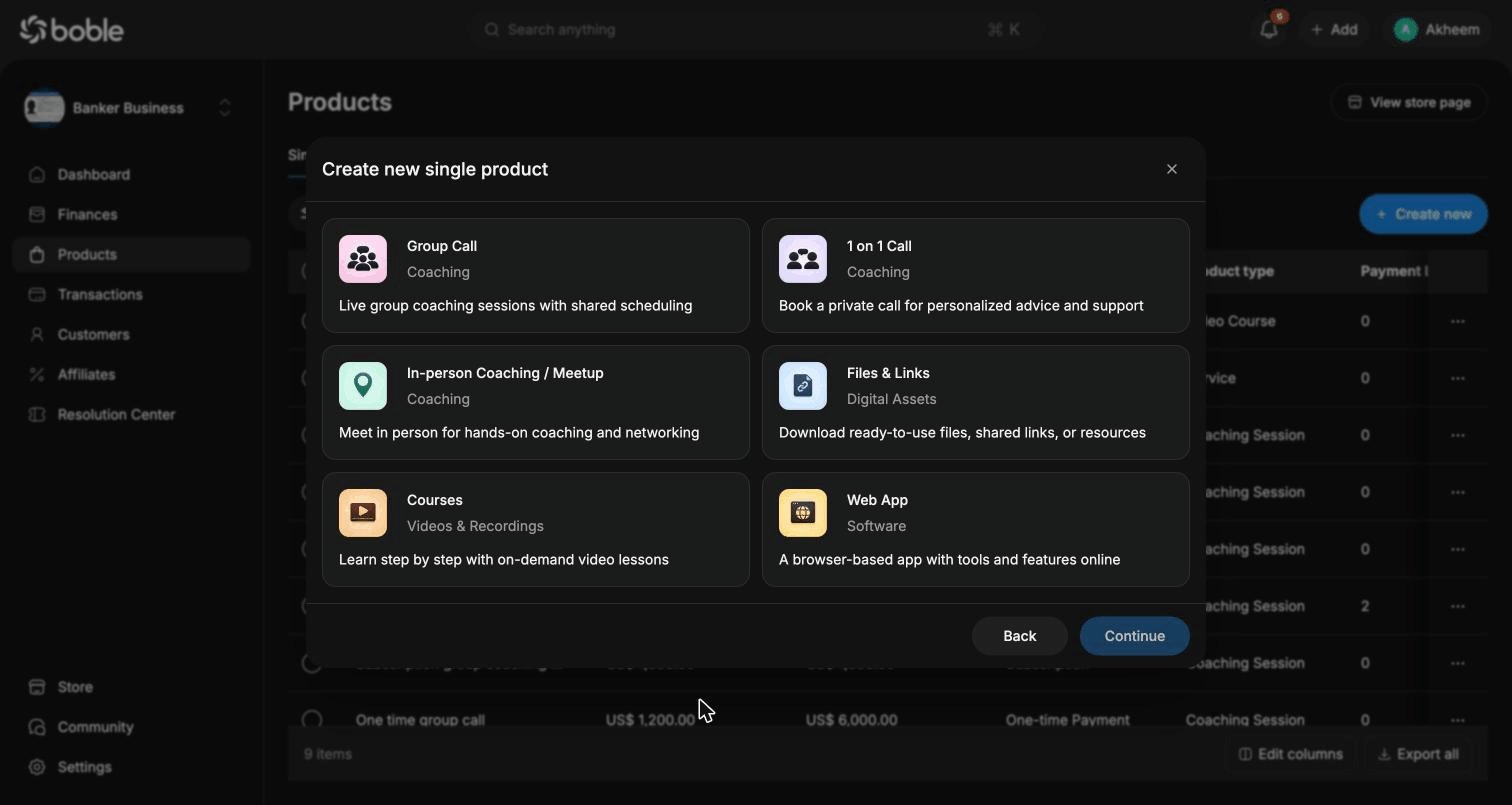
 Available types include:
* **Group Call** (Coaching) — live group coaching sessions with shared scheduling
* **1 on 1 Call** (Coaching) — private call for personalized advice and support
* **In-person Coaching / Meetup** (Coaching) — meet in person for hands-on coaching and networking
* **Files & Links** (Digital Assets) — ready-to-use files, shared links, or resources
* **Courses** (Videos & Recordings) — step-by-step on-demand video lessons
* **Web App** (Software) — a browser-based app with tools and features online
Available types include:
* **Group Call** (Coaching) — live group coaching sessions with shared scheduling
* **1 on 1 Call** (Coaching) — private call for personalized advice and support
* **In-person Coaching / Meetup** (Coaching) — meet in person for hands-on coaching and networking
* **Files & Links** (Digital Assets) — ready-to-use files, shared links, or resources
* **Courses** (Videos & Recordings) — step-by-step on-demand video lessons
* **Web App** (Software) — a browser-based app with tools and features online
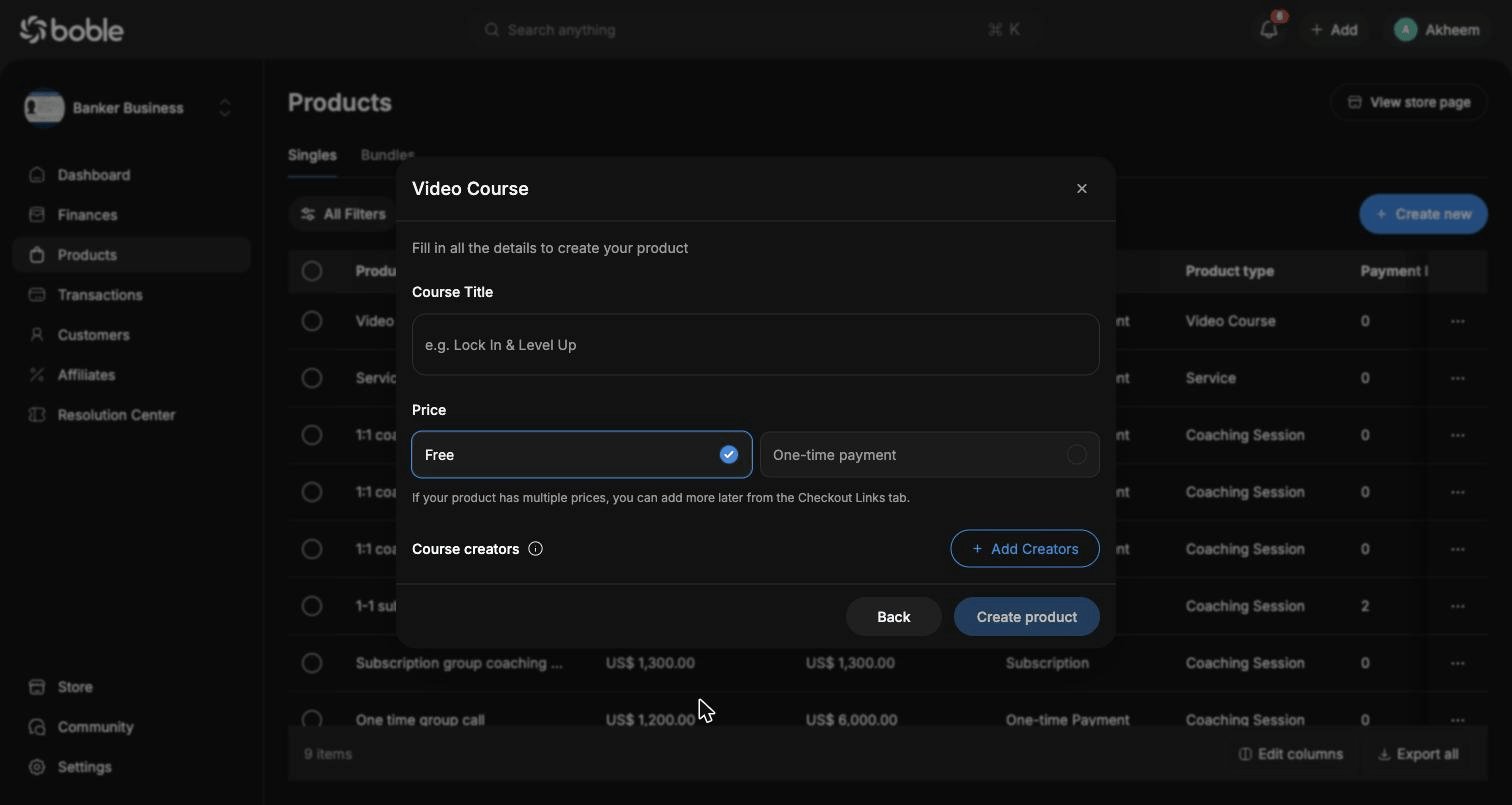
 Enter the **title**, choose the initial **price** (`Free` or `One-time payment` — you can add more prices later from the Checkout Links tab), optionally add **creators**, then click **Create product**.
 ## Product details
Click a product in the list to open its detail page. The header shows the product name, its visibility badge (e.g. `Public`), a **Copy payment link** button, a **View product page** button, and a `⋯` menu for more actions. A live phone preview on the right reflects your changes in real time.
## Product details
Click a product in the list to open its detail page. The header shows the product name, its visibility badge (e.g. `Public`), a **Copy payment link** button, a **View product page** button, and a `⋯` menu for more actions. A live phone preview on the right reflects your changes in real time.
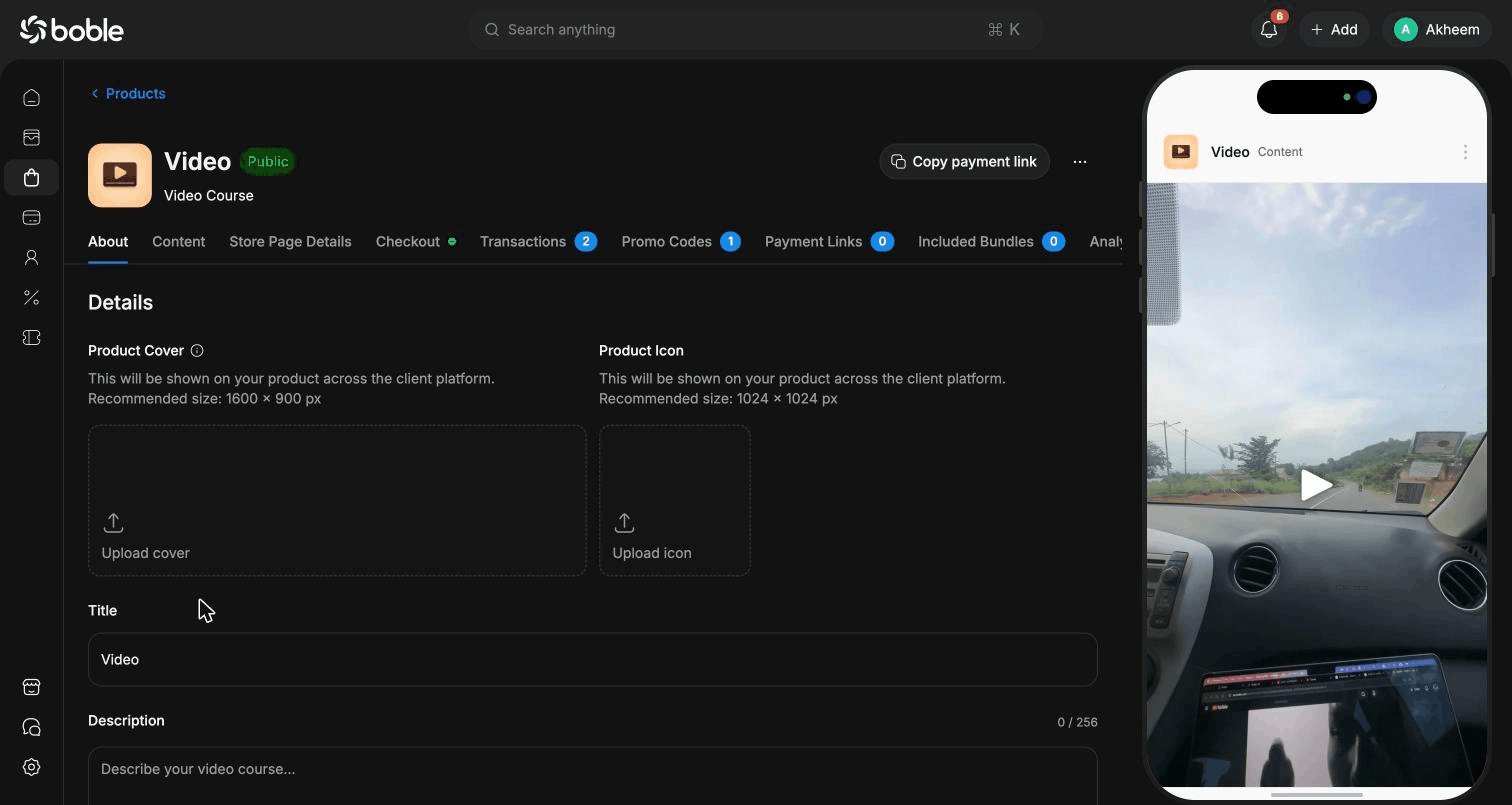 The page is organized in tabs:
### About
General product information: **Product Cover** (recommended 1600 × 900 px), **Product Icon** (recommended 1024 × 1024 px), **Title**, and **Description** (256 characters max). Cover and icon are shown across the client platform.
### Content
For video courses, this is where you build the curriculum:
* Upload videos and give each one a description
* Attach **Additional Resources** to lessons
* Organize lessons into **Sessions** (**Add Lesson** / **Add Session**)
### Store Page Details
Customize the product's public store page: upload photos (drag and drop), embed media by **URL**, and add content **Sections** such as *What's inside* and *Who it's for*. A preview of the store page is displayed alongside.
### Checkout
Configure pricing and the checkout experience:
* **Pricing type** — `Free`, `One-time payment`, or `Subscription` (with a billing cycle, e.g. monthly)
* **Amount** and currency
* **Discount (%)**
* **Advanced Options** — **Trial Period**, **Add a stock** (limited quantity), **Auto expire access**
The checkout preview shows what customers see: payment methods (Card, Cash App Pay, Crypto), promotion code field, and the legal footer. Use **View checkout page** to open the real checkout.
### Transactions
All payments for this product: amount, pricing type, status (`Succeeded`, …), customer, payment method, and transaction time. Filter by **Status**, **Payment Method**, or **Promo Code**, and use **Export all** to download the list.
### Promo Codes
Create and track discount codes with **Add promo code**. Each code shows its **discount** (e.g. 10%), **status** (`Active`), **discounted price**, **usage** against **Max Users** (e.g. 1/50), and **expiration date**.
### Payment Links
Create additional payment links with **Add payment link** to sell the same product at different prices or to different audiences without duplicating it.
### Included Bundles
Lists the bundles containing this product. Use **Add to bundle** to sell it as part of a package deal.
### Analytics
Per-product analytics. Coming soon — the feature is under active development.
## Bundles
The **Bundles** tab lists your packages. The table adds a **Single Products** column showing how many products each bundle contains.
### Creating a bundle
Click **Create new** on the Bundles tab. The wizard has two steps:
Search and filter your single products (**Product Type**, **Product Price**) and tick the ones to include.
The page is organized in tabs:
### About
General product information: **Product Cover** (recommended 1600 × 900 px), **Product Icon** (recommended 1024 × 1024 px), **Title**, and **Description** (256 characters max). Cover and icon are shown across the client platform.
### Content
For video courses, this is where you build the curriculum:
* Upload videos and give each one a description
* Attach **Additional Resources** to lessons
* Organize lessons into **Sessions** (**Add Lesson** / **Add Session**)
### Store Page Details
Customize the product's public store page: upload photos (drag and drop), embed media by **URL**, and add content **Sections** such as *What's inside* and *Who it's for*. A preview of the store page is displayed alongside.
### Checkout
Configure pricing and the checkout experience:
* **Pricing type** — `Free`, `One-time payment`, or `Subscription` (with a billing cycle, e.g. monthly)
* **Amount** and currency
* **Discount (%)**
* **Advanced Options** — **Trial Period**, **Add a stock** (limited quantity), **Auto expire access**
The checkout preview shows what customers see: payment methods (Card, Cash App Pay, Crypto), promotion code field, and the legal footer. Use **View checkout page** to open the real checkout.
### Transactions
All payments for this product: amount, pricing type, status (`Succeeded`, …), customer, payment method, and transaction time. Filter by **Status**, **Payment Method**, or **Promo Code**, and use **Export all** to download the list.
### Promo Codes
Create and track discount codes with **Add promo code**. Each code shows its **discount** (e.g. 10%), **status** (`Active`), **discounted price**, **usage** against **Max Users** (e.g. 1/50), and **expiration date**.
### Payment Links
Create additional payment links with **Add payment link** to sell the same product at different prices or to different audiences without duplicating it.
### Included Bundles
Lists the bundles containing this product. Use **Add to bundle** to sell it as part of a package deal.
### Analytics
Per-product analytics. Coming soon — the feature is under active development.
## Bundles
The **Bundles** tab lists your packages. The table adds a **Single Products** column showing how many products each bundle contains.
### Creating a bundle
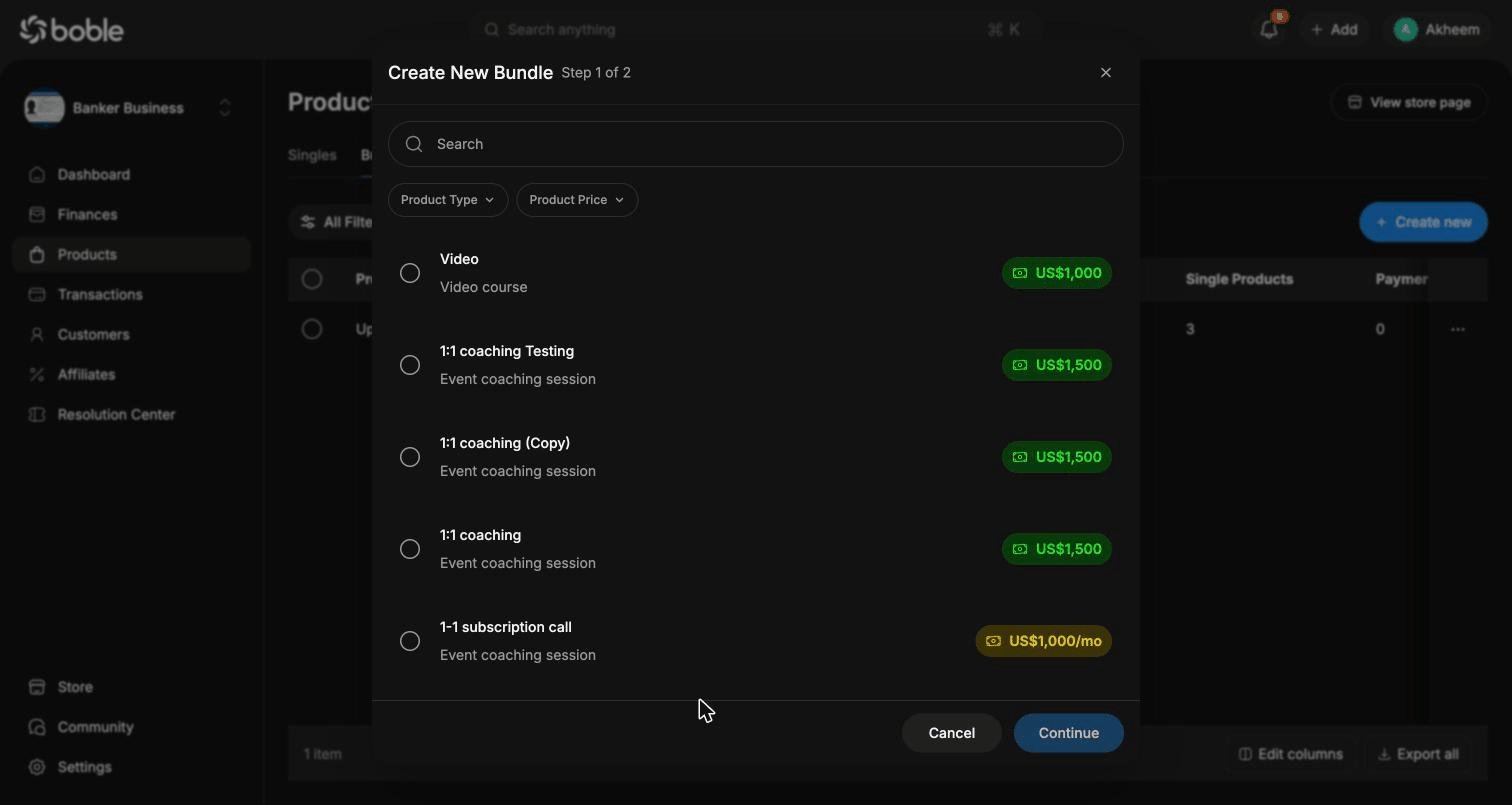
Click **Create new** on the Bundles tab. The wizard has two steps:
Search and filter your single products (**Product Type**, **Product Price**) and tick the ones to include.
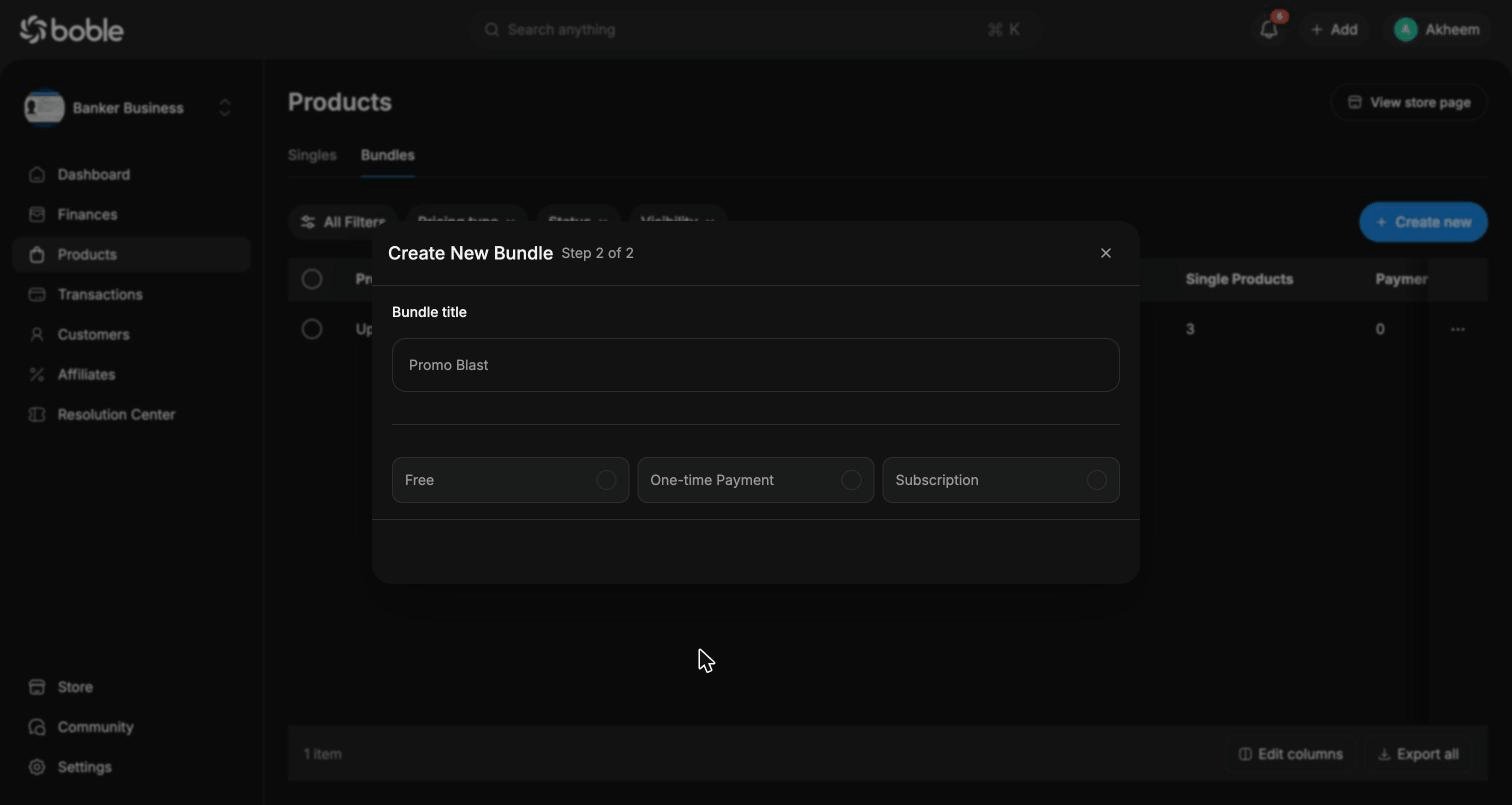
 Give the bundle a **title** and choose its pricing type: `Free`, `One-time Payment`, or `Subscription`.
 ### Bundle details
A bundle's detail page works like a product's, with tabs **About**, **Store Page Details**, **Checkout**, **Transactions**, **Promo Codes**, and **Payment Links**.
### Bundle details
A bundle's detail page works like a product's, with tabs **About**, **Store Page Details**, **Checkout**, **Transactions**, **Promo Codes**, and **Payment Links**.
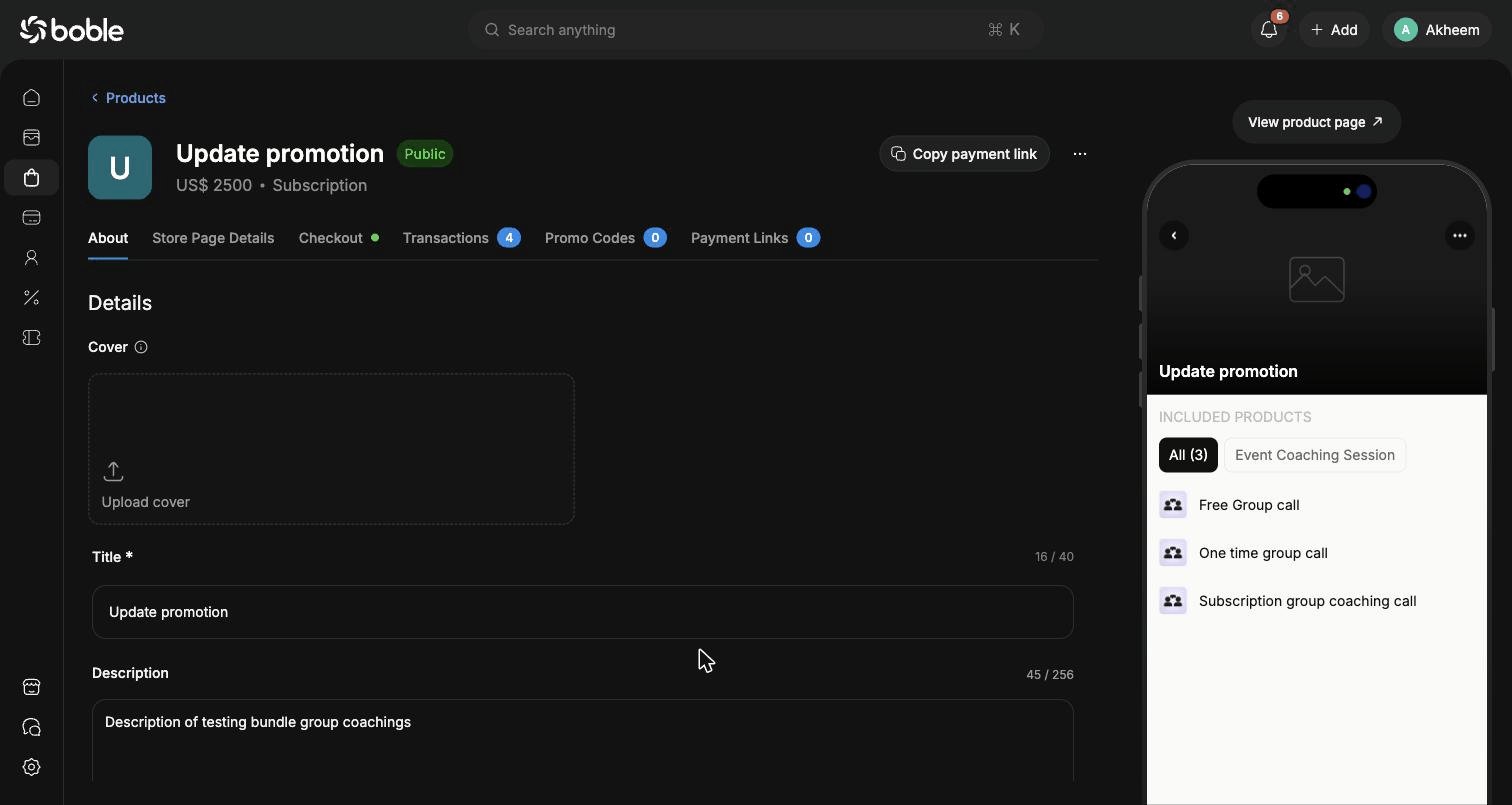 * **About** — cover, title (40 characters max), description (256 characters max), and the list of **Single products** included in the bundle (**Add new** to attach more). The live preview shows the included products grouped by type.
* **Checkout** — same options as a product. For subscriptions, you also set the **billing cycle** (e.g. *"Customer will be charged US\$ 2,500.00 every month"*). The checkout preview lists all included products.
* **About** — cover, title (40 characters max), description (256 characters max), and the list of **Single products** included in the bundle (**Add new** to attach more). The live preview shows the included products grouped by type.
* **Checkout** — same options as a product. For subscriptions, you also set the **billing cycle** (e.g. *"Customer will be charged US\$ 2,500.00 every month"*). The checkout preview lists all included products.