> ## Documentation Index
> Fetch the complete documentation index at: https://docs.boble.io/llms.txt
> Use this file to discover all available pages before exploring further.
# Dashboard
> Monitor your revenue, sales, and customer activity at a glance from the Boble admin dashboard.
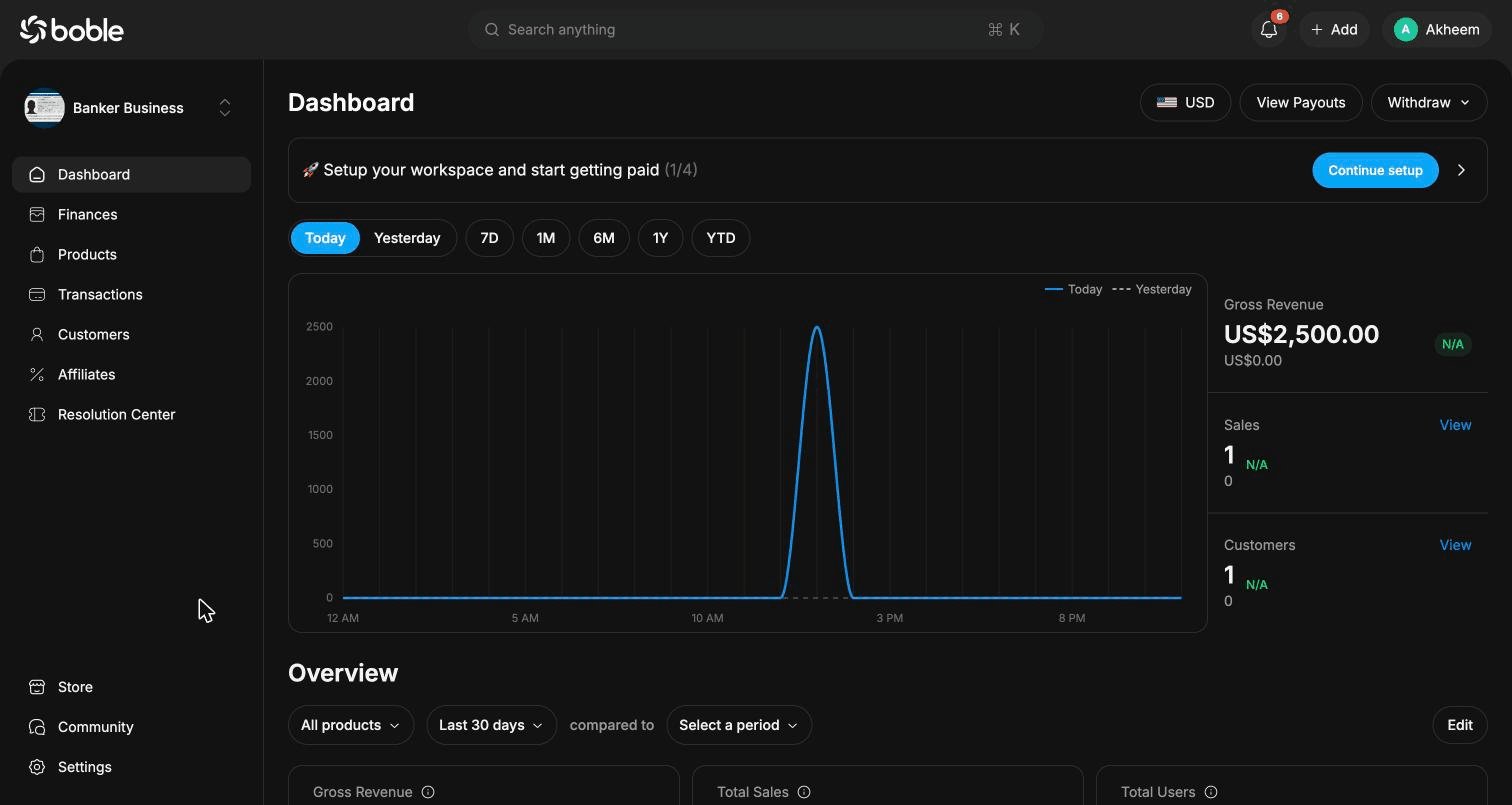
The **Dashboard** is the home page of the Boble admin panel ([admin.boble.io/dashboard](https://admin.dev.boble.io/dashboard)). It gives you a real-time overview of your workspace: earnings, sales, customers, and key business metrics.
 ## Page layout
### Header actions
At the top right of the page you will find:
| Action | Description |
| --------------------- | -------------------------------------------------------- |
| **Currency selector** | Switch the display currency of the dashboard (e.g. USD). |
| **View Payouts** | Open the payouts page to track money sent to your bank. |
| **Withdraw** | Withdraw your available balance. |
### Setup banner
If your workspace is not fully configured, a banner — *"Setup your workspace and start getting paid"* — shows your progress (e.g. 1/4 steps completed). Click **Continue setup** to finish the remaining steps.
### Earnings chart
The main chart compares **today's earnings against yesterday's**, hour by hour. Use the period filter to change the time range:
* **Today** / **Yesterday**
* **7D** — last 7 days
* **1M** — last month
* **6M** — last 6 months
* **1Y** — last year
* **YTD** — year to date
Next to the chart, three summary cards show the current period's **Gross Revenue**, number of **Sales**, and new **Customers**, each with a comparison against the previous period and a **View** link to the detailed page.
## Overview section
The **Overview** section displays your key metrics as cards, each with a mini trend chart. You can filter by **product** (All products by default), change the **period** (Last 30 days by default), and **compare** it with another period. Click **Edit** to customize which cards are displayed.
| Metric | Description |
| ----------------------------- | -------------------------------------------------------- |
| **Gross Revenue** | Total revenue generated over the selected period. |
| **Total Sales** | Number of completed sales. |
| **Total Users** | Number of users acquired. |
| **Average Revenue Per User** | Gross revenue divided by the number of users (ARPU). |
| **Monthly Recurring Revenue** | Predictable revenue from active subscriptions (MRR). |
| **Successful Payments** | Number of payments that completed successfully. |
| **Failed Payments** | Number of payments that failed. |
| **Today's Earnings** | Revenue collected today, hour by hour. |
| **Recurring Sales** | Number of sales coming from subscription renewals. |
| **Churn Rate** | Percentage of subscribers who cancelled over the period. |
| **Churn Revenue** | Revenue lost to cancellations over the period. |
### Top Customers by Spend
A ranked list of your **top 5 customers** by total amount spent, so you can quickly identify your most valuable customers.
## Sidebar navigation
The left sidebar is available on every page of the admin panel:
* **Dashboard** — this page
* **Finances** — balance, payouts, and financial reports
* **Products** — create and manage your products
* **Transactions** — payment history
* **Customers** — customer list and details
* **Affiliates** — affiliate program management
* **Resolution Center** — disputes and customer claims
* **Store** — your public storefront settings
* **Community** — community features
* **Settings** — workspace configuration
The workspace switcher at the top of the sidebar lets you change the active business, and the global search bar (`⌘K`) lets you find anything in the admin panel.
## Page layout
### Header actions
At the top right of the page you will find:
| Action | Description |
| --------------------- | -------------------------------------------------------- |
| **Currency selector** | Switch the display currency of the dashboard (e.g. USD). |
| **View Payouts** | Open the payouts page to track money sent to your bank. |
| **Withdraw** | Withdraw your available balance. |
### Setup banner
If your workspace is not fully configured, a banner — *"Setup your workspace and start getting paid"* — shows your progress (e.g. 1/4 steps completed). Click **Continue setup** to finish the remaining steps.
### Earnings chart
The main chart compares **today's earnings against yesterday's**, hour by hour. Use the period filter to change the time range:
* **Today** / **Yesterday**
* **7D** — last 7 days
* **1M** — last month
* **6M** — last 6 months
* **1Y** — last year
* **YTD** — year to date
Next to the chart, three summary cards show the current period's **Gross Revenue**, number of **Sales**, and new **Customers**, each with a comparison against the previous period and a **View** link to the detailed page.
## Overview section
The **Overview** section displays your key metrics as cards, each with a mini trend chart. You can filter by **product** (All products by default), change the **period** (Last 30 days by default), and **compare** it with another period. Click **Edit** to customize which cards are displayed.
| Metric | Description |
| ----------------------------- | -------------------------------------------------------- |
| **Gross Revenue** | Total revenue generated over the selected period. |
| **Total Sales** | Number of completed sales. |
| **Total Users** | Number of users acquired. |
| **Average Revenue Per User** | Gross revenue divided by the number of users (ARPU). |
| **Monthly Recurring Revenue** | Predictable revenue from active subscriptions (MRR). |
| **Successful Payments** | Number of payments that completed successfully. |
| **Failed Payments** | Number of payments that failed. |
| **Today's Earnings** | Revenue collected today, hour by hour. |
| **Recurring Sales** | Number of sales coming from subscription renewals. |
| **Churn Rate** | Percentage of subscribers who cancelled over the period. |
| **Churn Revenue** | Revenue lost to cancellations over the period. |
### Top Customers by Spend
A ranked list of your **top 5 customers** by total amount spent, so you can quickly identify your most valuable customers.
## Sidebar navigation
The left sidebar is available on every page of the admin panel:
* **Dashboard** — this page
* **Finances** — balance, payouts, and financial reports
* **Products** — create and manage your products
* **Transactions** — payment history
* **Customers** — customer list and details
* **Affiliates** — affiliate program management
* **Resolution Center** — disputes and customer claims
* **Store** — your public storefront settings
* **Community** — community features
* **Settings** — workspace configuration
The workspace switcher at the top of the sidebar lets you change the active business, and the global search bar (`⌘K`) lets you find anything in the admin panel.